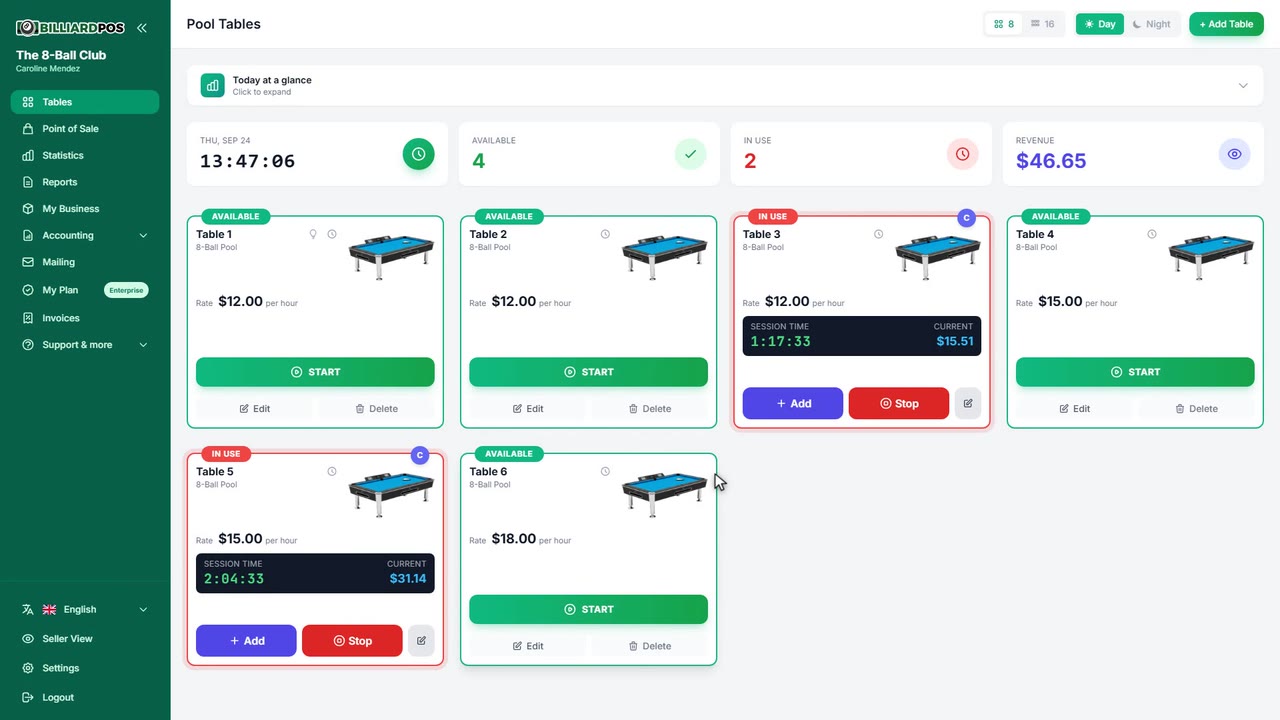
Set your business name, which is what appears throughout the app and on the documents it produces, such as receipts and tickets. You can change it at any time from Settings. It is also one of the first things the welcome wizard asks for when you open your account.
#set-your-company-nameInitial setup — settings you define once when you open your account
Tap a feature to expand it.
Change the language
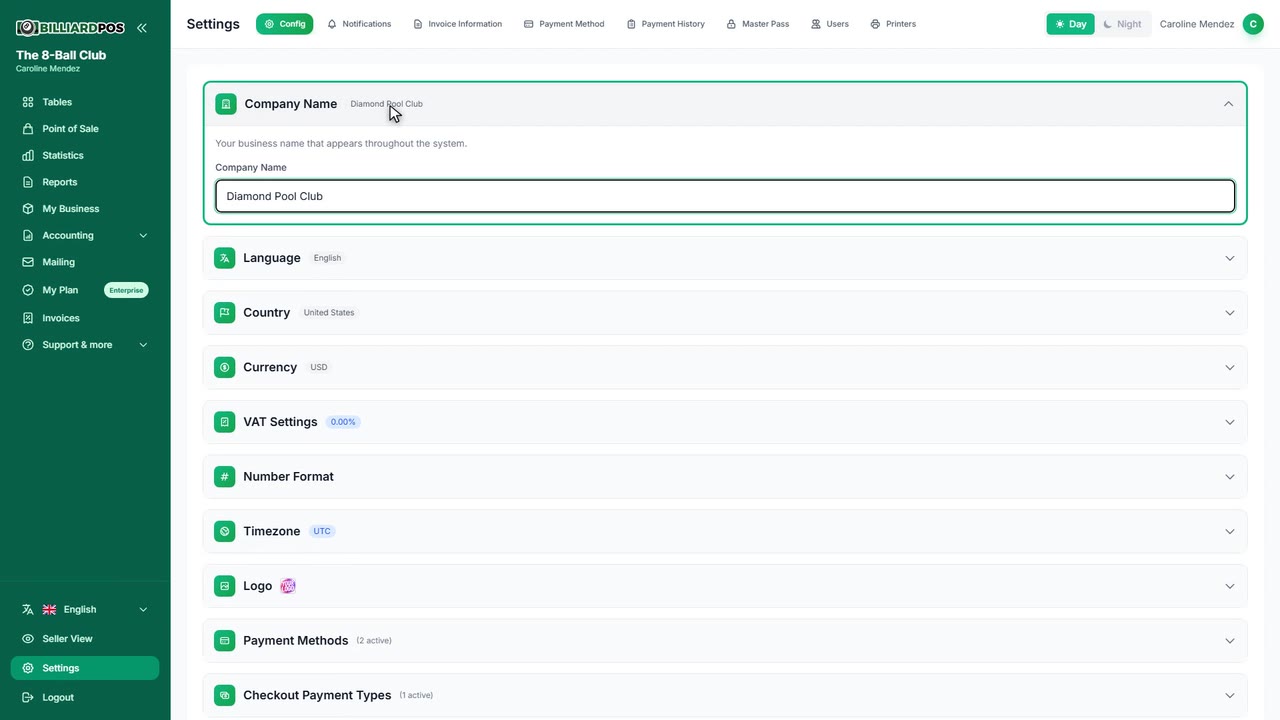
Choose the language the whole interface is shown in. Twelve are available: English, Spanish, French, Portuguese, Italian, German, Vietnamese, Chinese, Arabic, Filipino, Russian and Thai. The change takes effect immediately and applies to the system's own screens — your product and table names stay exactly as you typed them.
#change-the-language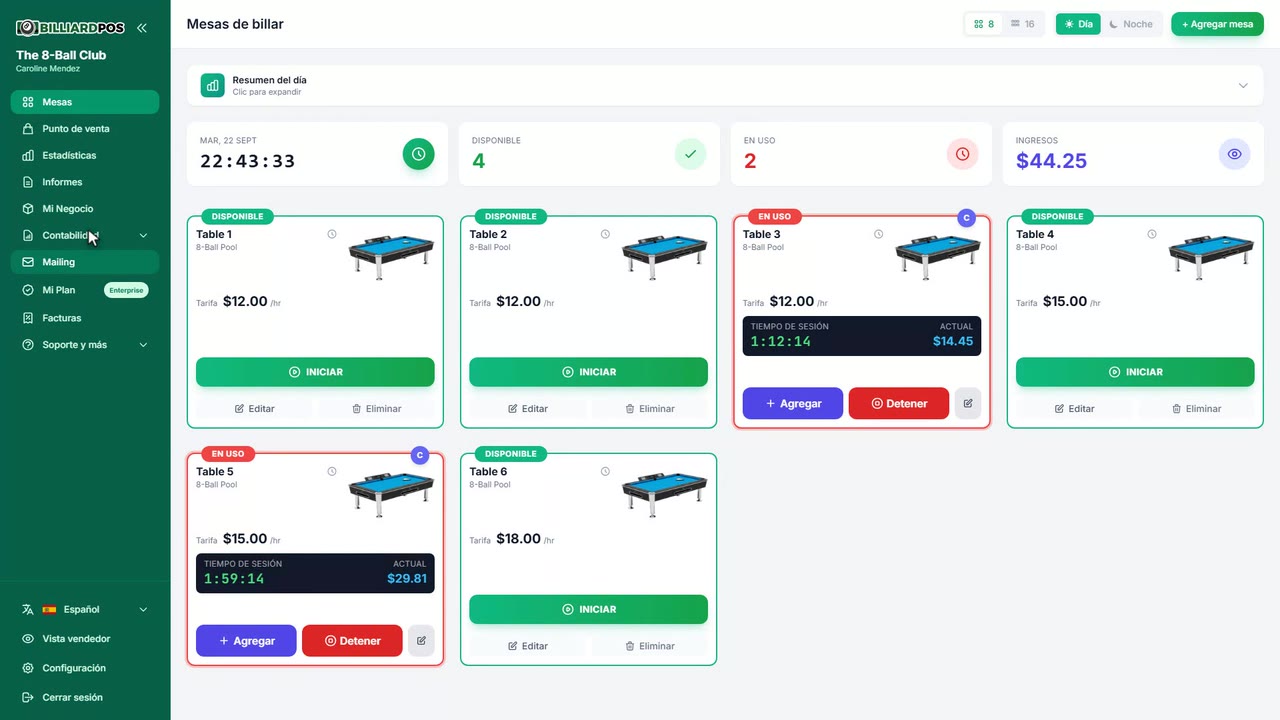
Set your currency
Pick the currency you trade in: it sets the symbol shown next to every price and how many decimals it uses by default. It applies across the tables, the point of sale, the reports and every printed document. Choose it at the start and leave it alone — amounts already recorded are not converted if you change it later.
#set-your-currency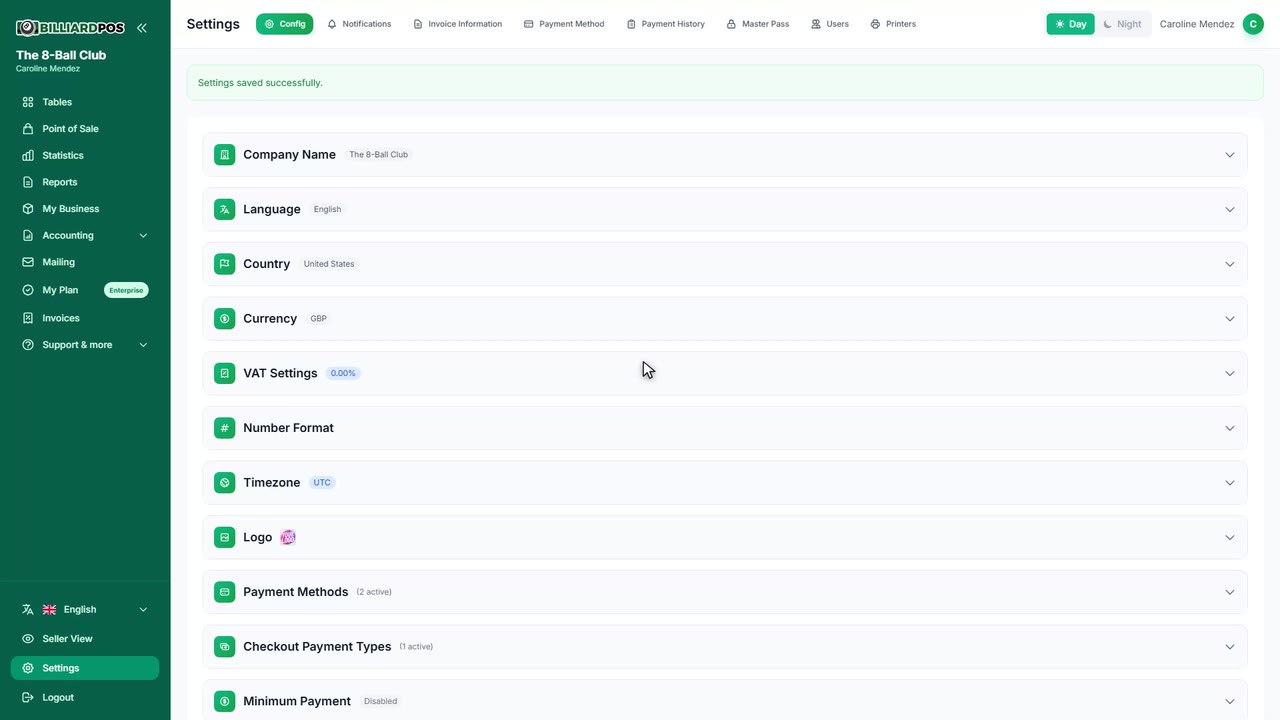
VAT settings
Enter your VAT rate and whether the prices you type already include it or tax has to be added on top. From that the system works out the net amount, the tax and the total of every sale. Ticking or unticking "prices include VAT" does not rewrite the prices you already loaded — it changes how they are read.
#vat-settings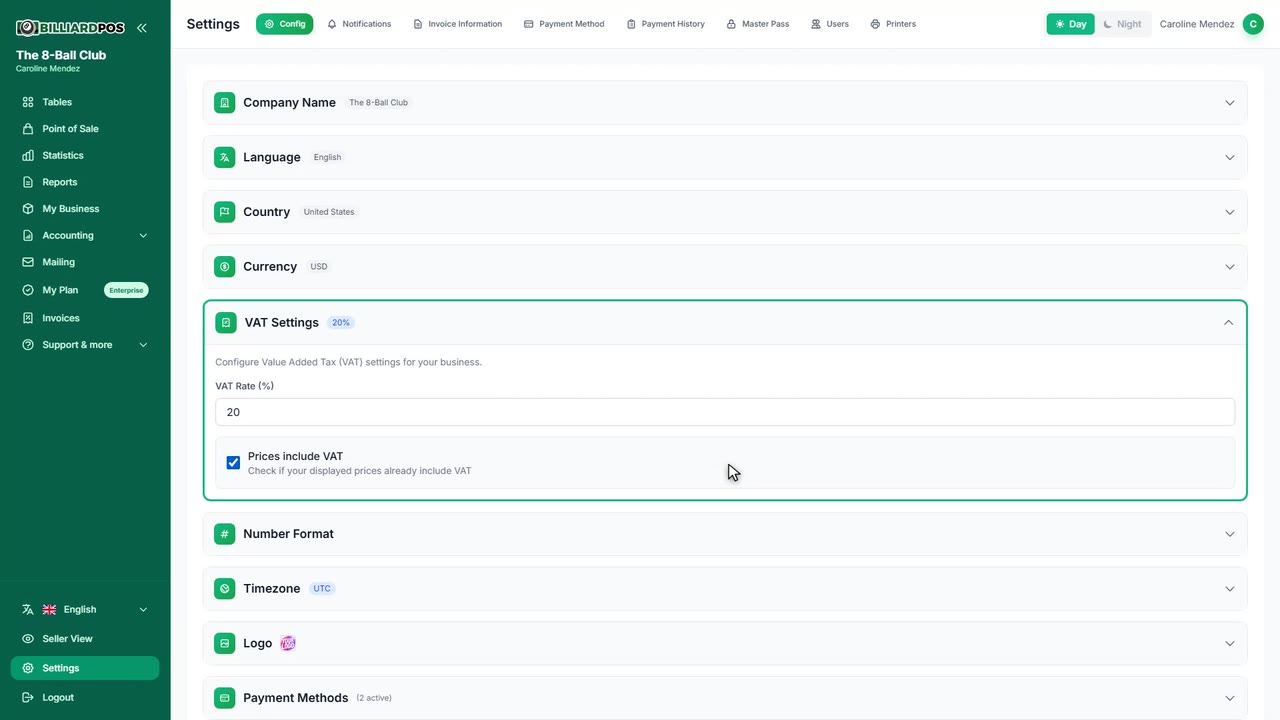
Number format
Set how figures are written so they read the way they do in your country: thousands separator (comma, point, space or none), whether decimals are used at all, the decimal separator, and how many decimal places to show, from zero to four. It applies to every amount in the app and to the reports it exports. For currencies with no cents, such as the Chilean peso, decimals are normally switched off.
#number-format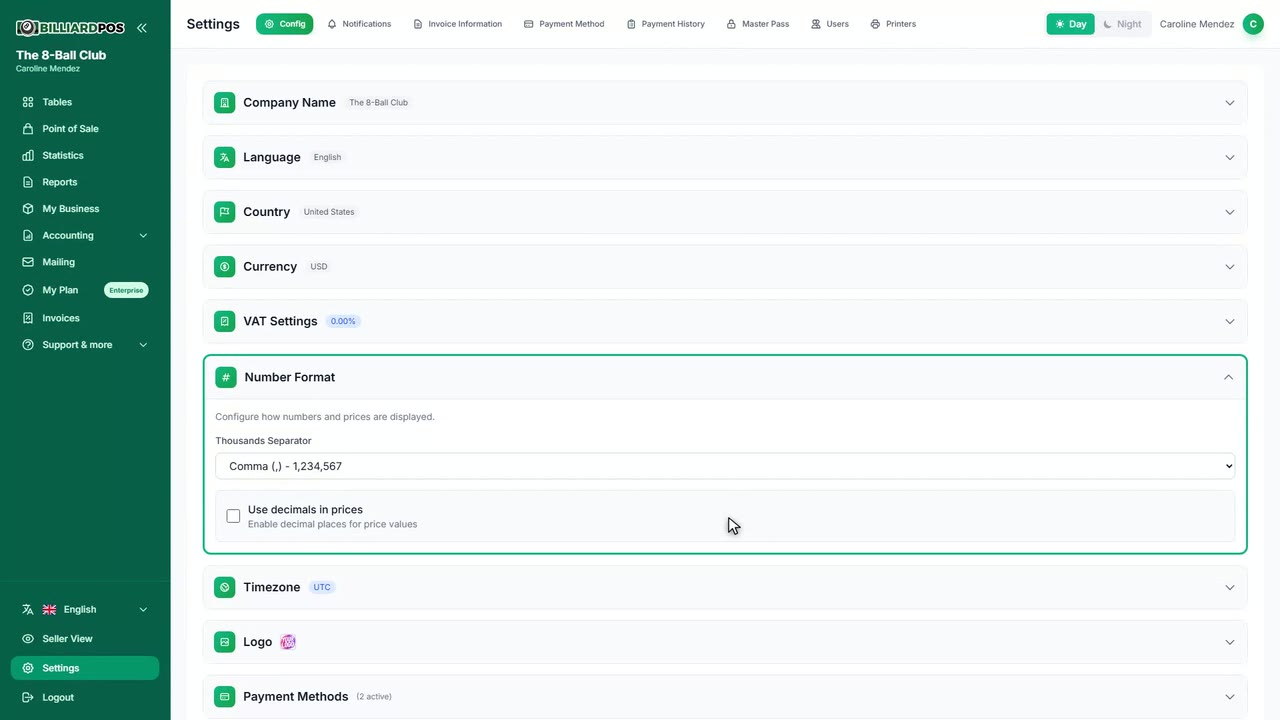
Time zone
Set your venue's time zone so session start and end times, cash shifts and reports line up with the clock on the wall. You can search for it by city or pick a GMT offset directly. The welcome wizard shows you the resulting time and asks you to confirm it before moving on.
#time-zone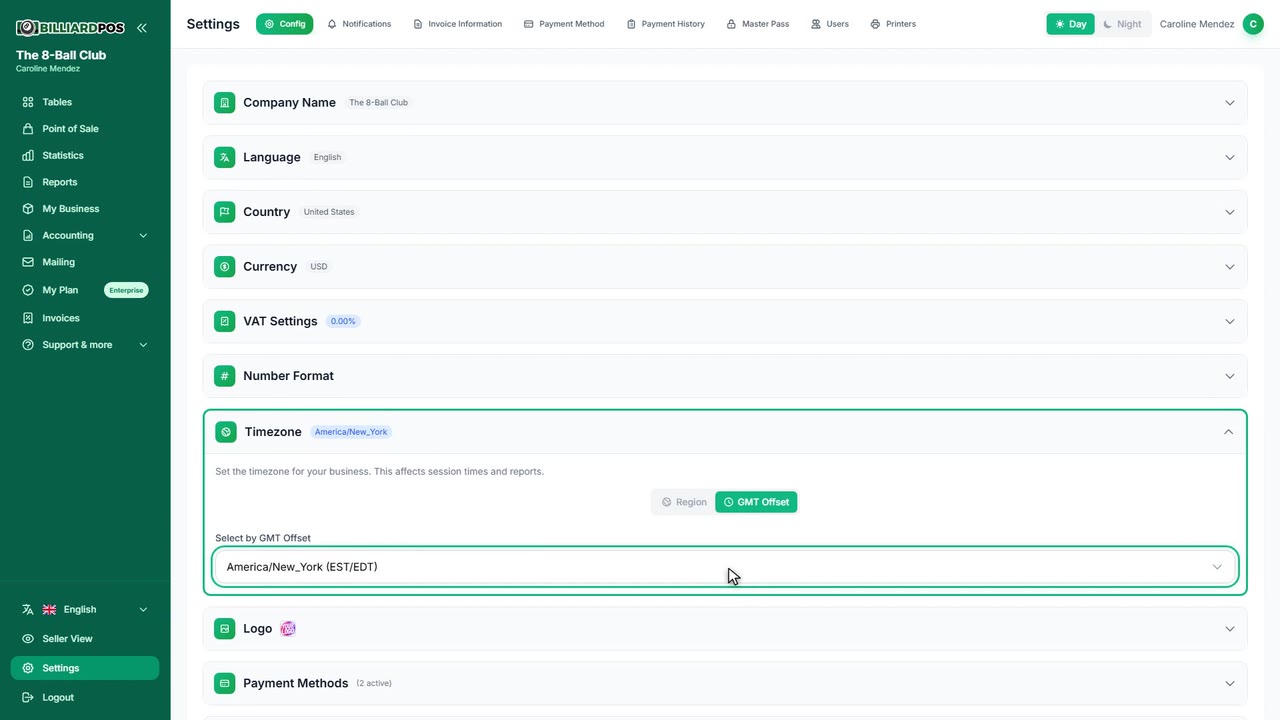
Set or change your logo
Upload your company logo — a square image of around 512x512 pixels works best — so it shows in the app and on the documents it produces. You can replace it whenever you like from Settings. Skipping it when you open your account costs you nothing: upload it later.
#set-or-change-your-logo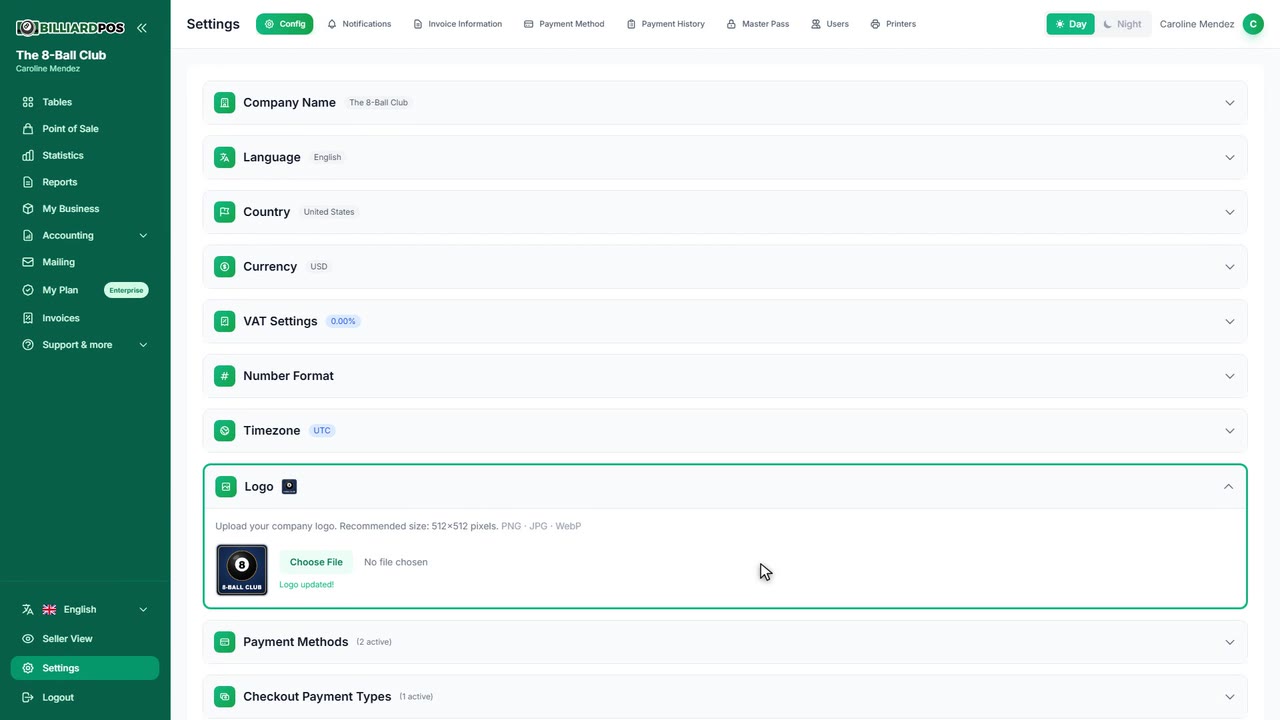
Core features enabled by default
Tap a feature to expand it.
Create a table
Register every table in your room with its name, type and photo. Billing is driven by the hourly rate, which is required; you can also add a half-hour rate for short sessions. A position field controls the order tables appear on screen, and your plan caps how many you can keep active at once.
#create-a-table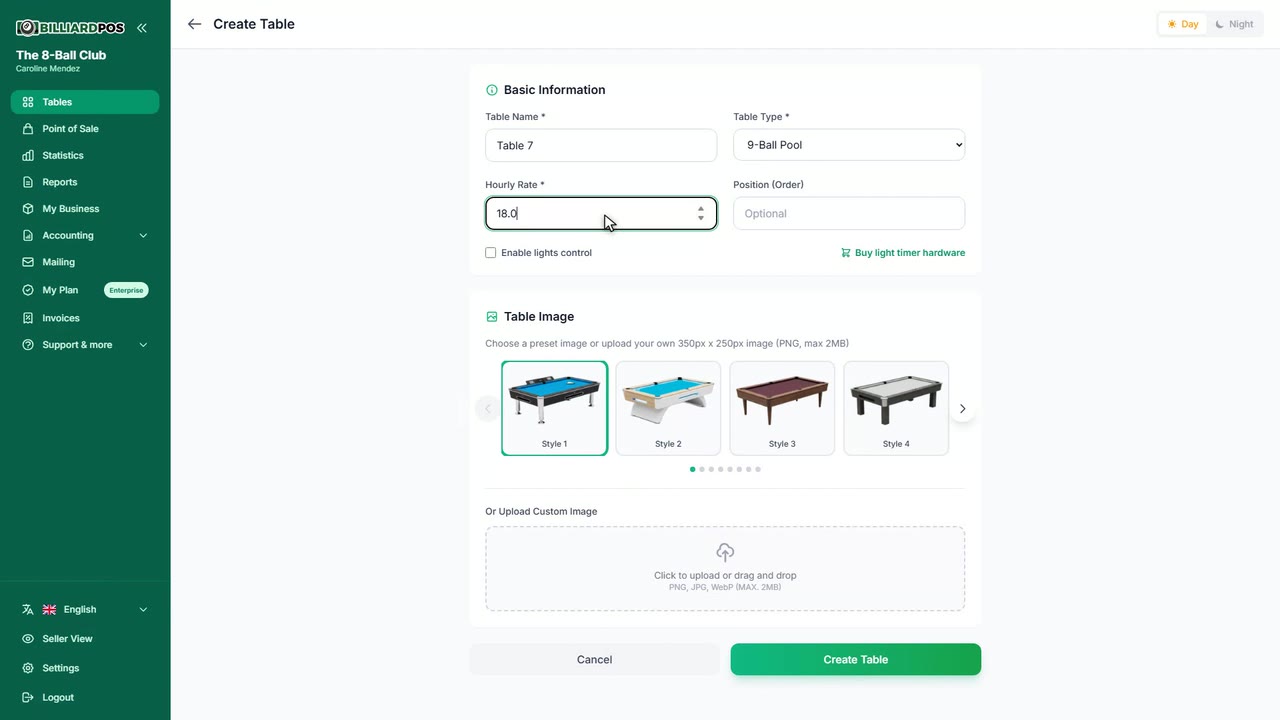
Check out a table
The moment you start the checkout the timer freezes and a summary appears: time played, consumptions, discounts and total. From there you choose how it is paid: one person pays, split evenly between players, only the players you pick, or move the bill to a POS tab. A payment method is always required, and with mixed payment on you can spread the amount across several methods at once.
#check-out-a-table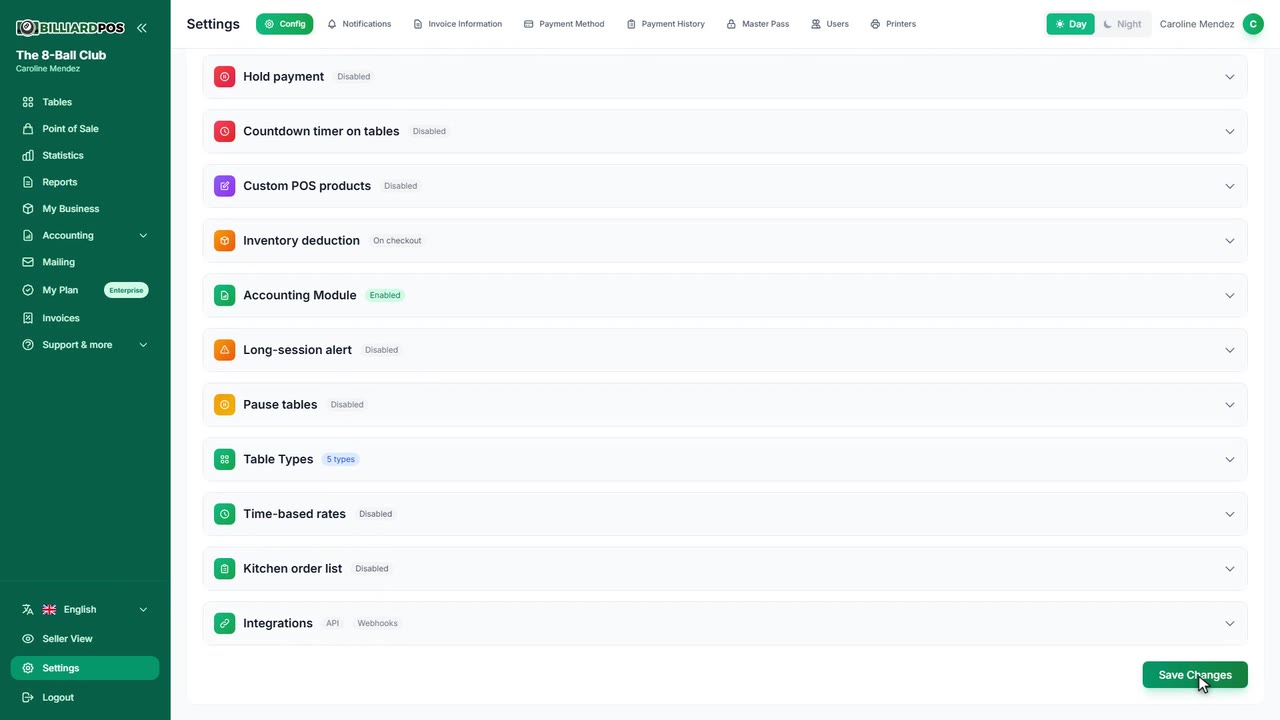
Move a table's time and consumptions to the POS
At checkout you can leave the table unpaid and move the whole bill — table time plus consumptions — onto an open POS tab under the customer's name. If a tab with that name is already open the amount is added to it; otherwise a new one is created and the table is freed for the next group. This is one of the checkout types, so it has to be ticked in Settings before the button shows up.
#move-a-tables-time-and-consumptions-to-the-pos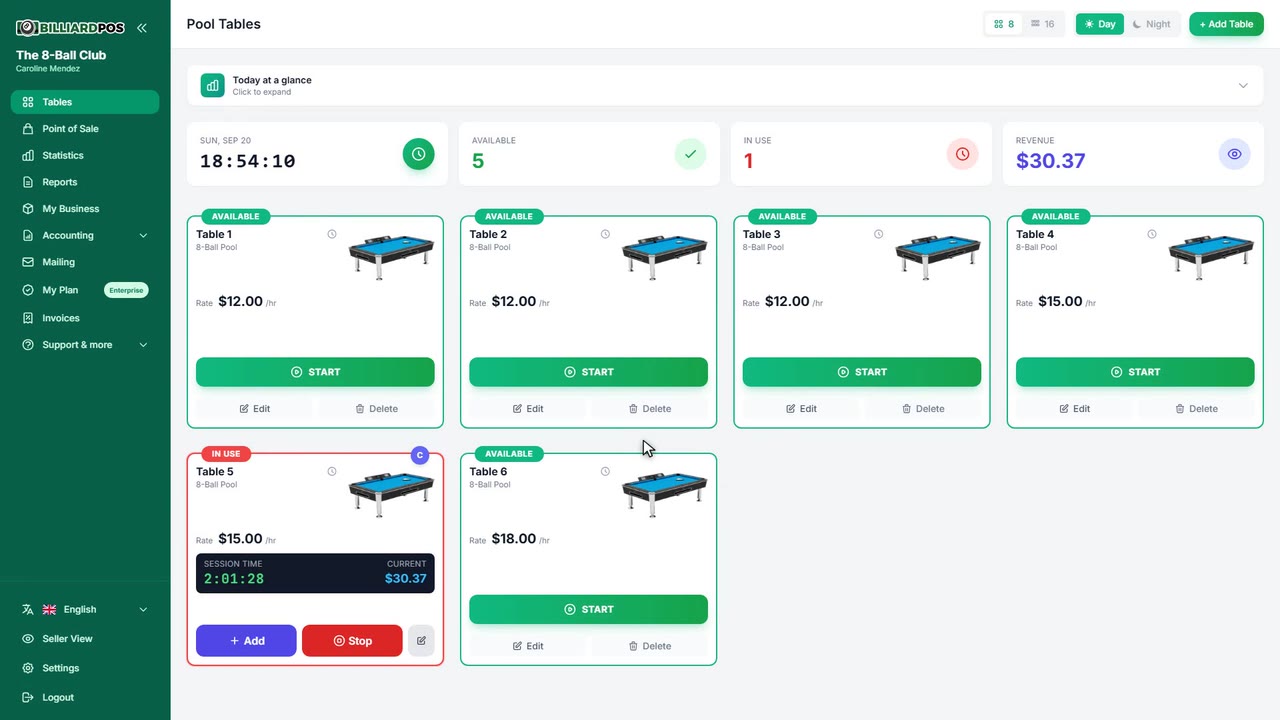
Move a POS tab onto a table
An open POS tab can be moved onto a table that is currently playing: the tab's owner joins the session as one more player and all of their items go with them. From then on they are paid together with the rest of the table at checkout. Stock is not deducted twice, because those items already left the warehouse when they were added to the tab.
#move-a-pos-tab-onto-a-table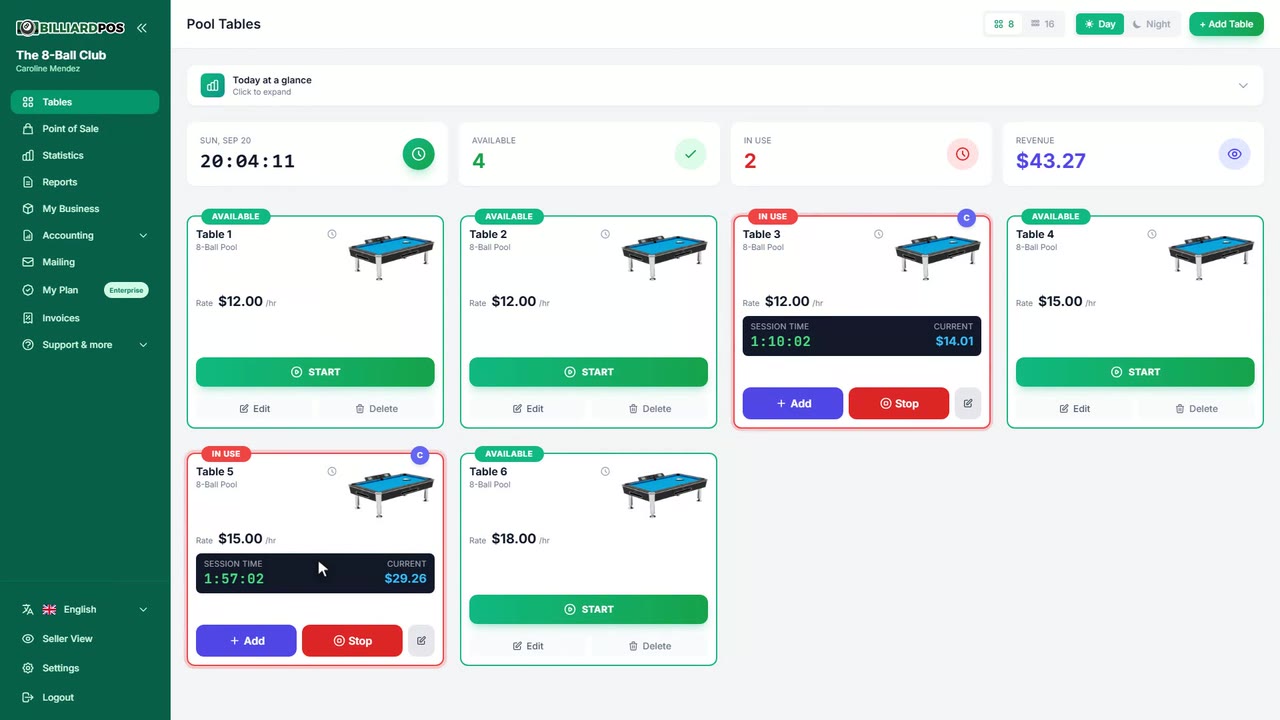
Add products to a table
From an open table you can add drinks and food and assign each line to the player who ordered it, with a note for the kitchen and, where the product allows it, removed ingredients or extras. The whole round is sent at once, stock is deducted according to your settings, and anything that could not be added for lack of stock is reported back instead of quietly disappearing. Items flagged for the kitchen also generate the matching kitchen order.
#add-products-to-a-table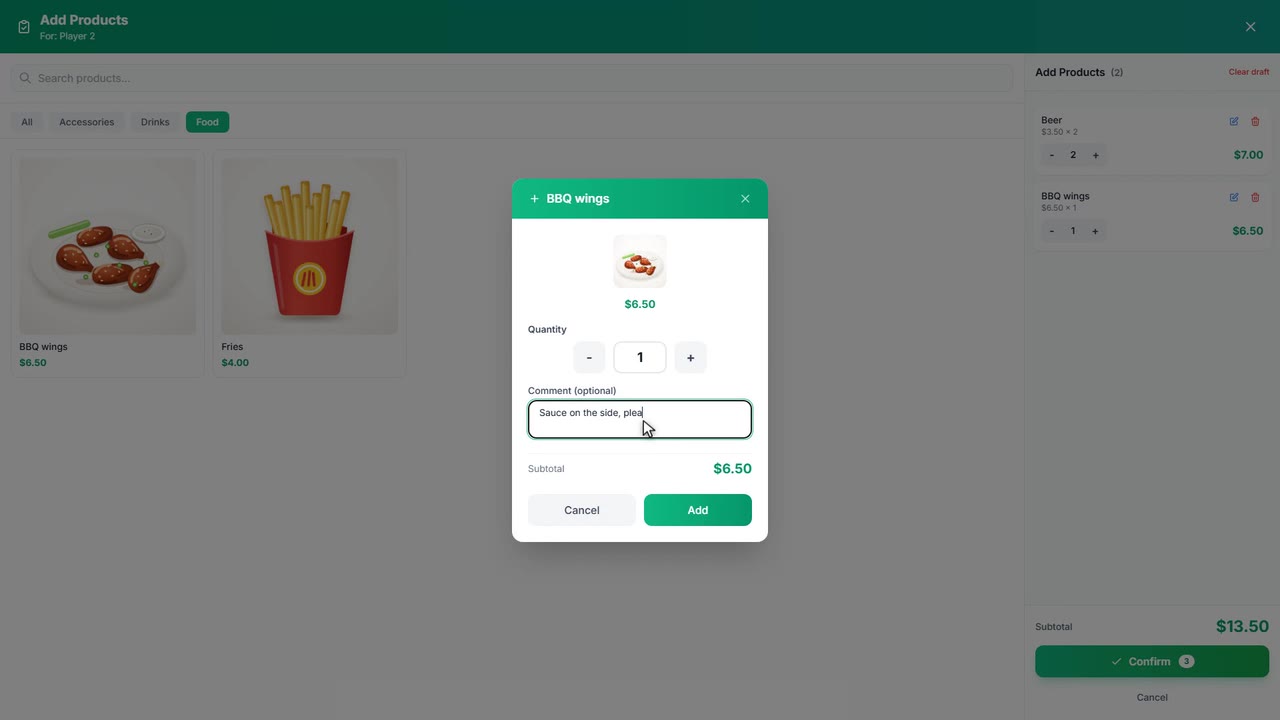
Create a product
Create every item you sell with its name, price, cost, category, image and, if you need them, SKU and barcode. You can turn on stock control and enter the opening quantity and which warehouse it goes into, and flag it as a kitchen item so it prints on kitchen tickets. SKUs have to be unique within your company.
#create-a-product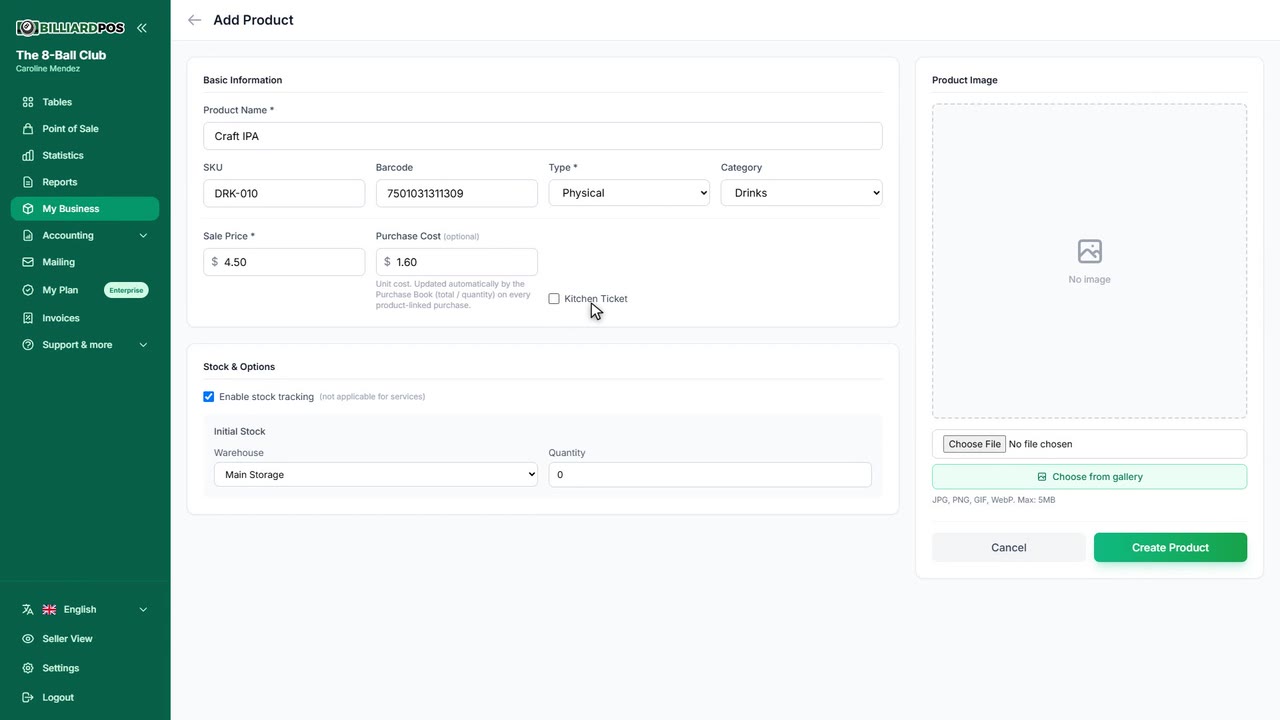
Edit a product
Change the price, cost, category, image or any other detail of a product, and switch it on or off without deleting it. To fix stock you type the quantity you actually counted in that warehouse, not the difference: the system works out the adjustment and records it with the reason and the user who made it. Leave the recount field empty and stock is left untouched.
#edit-a-product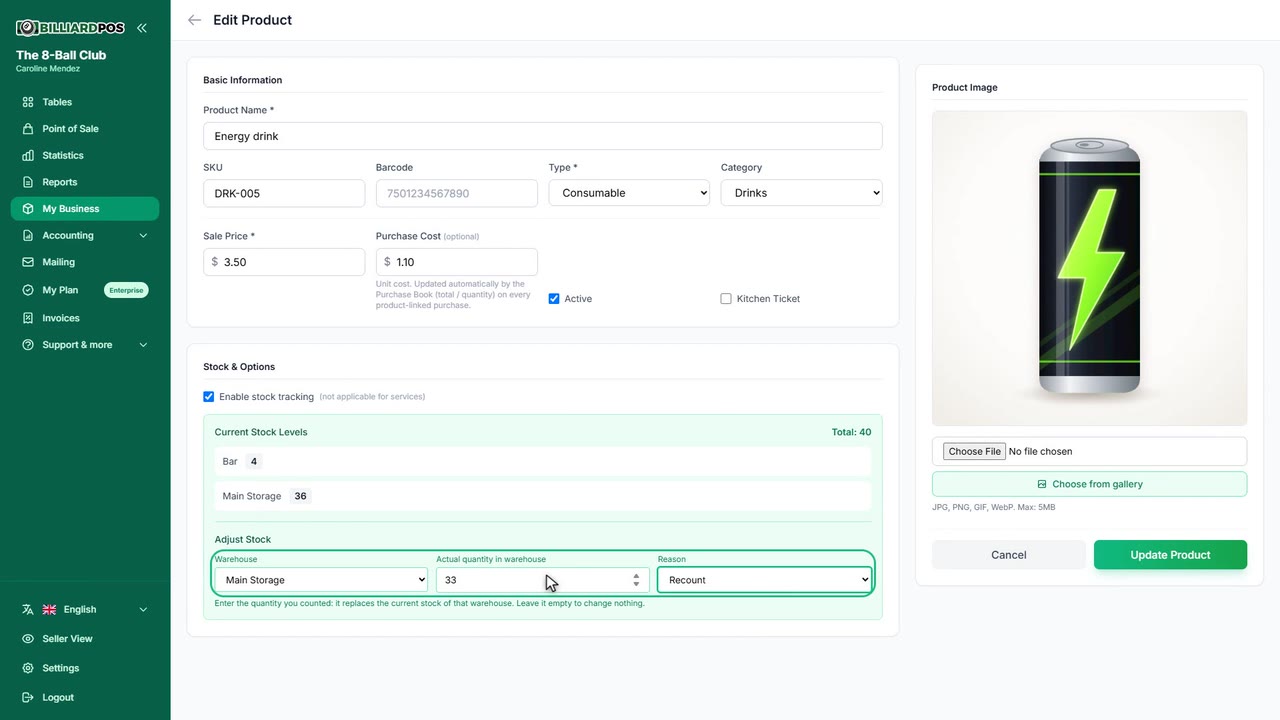
Warehouse setup
Create as many warehouses as you need and decide what each one is for. One can be flagged as the preselected warehouse — the one proposed when you create products or record purchases — and another as the point-of-sale warehouse, which is where the POS and the tables read and deduct product stock from. You can also transfer units between warehouses from the same screen.
#warehouse-setup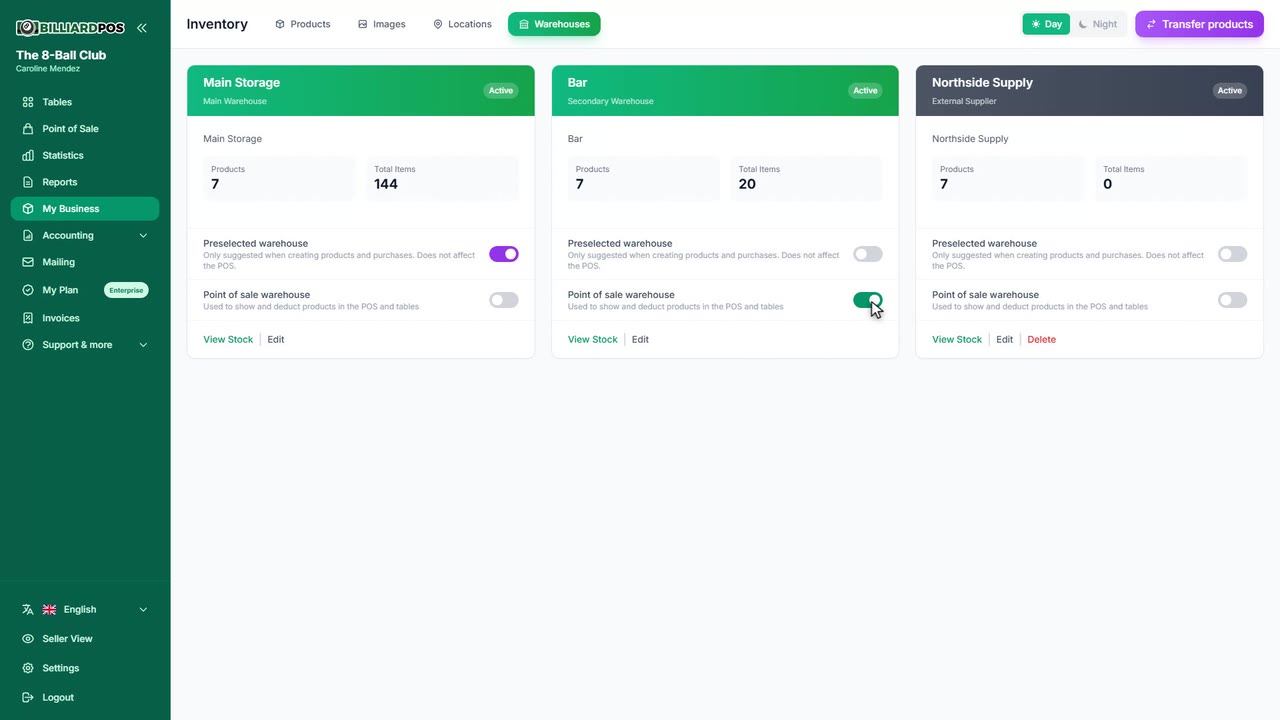
Email notifications
Get the sales summary by email with the Excel report attached, at the time you choose and daily, weekly or monthly. Separately you can switch on low-stock alerts for products and set the quantity below which an item counts as low. Both accept several addresses separated by commas, and you can send yourself a test email before relying on them.
#email-notifications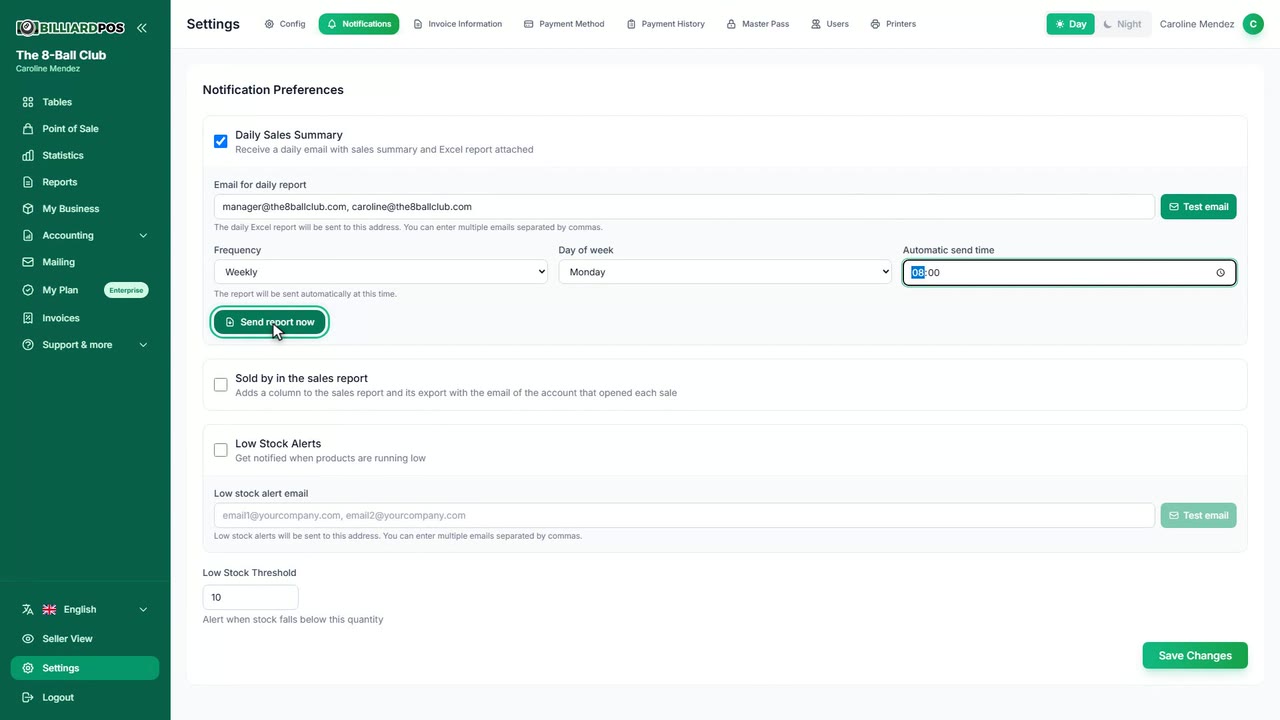
Printer setup
Set up the receipt printer and the kitchen or bar printer separately, each with its own template, paper width and header and footer text. There are four ways to connect: Browser Print, which just opens the browser's print dialog with nothing to install; Network (IP), which sends the ticket straight to a printer on your local network; QZ Tray, which prints silently to any USB or network printer on that computer; and Android (RawBT), for printing from a phone or tablet. A one-click Windows installer sets QZ Tray up and authorizes the computer for you.
#printer-setup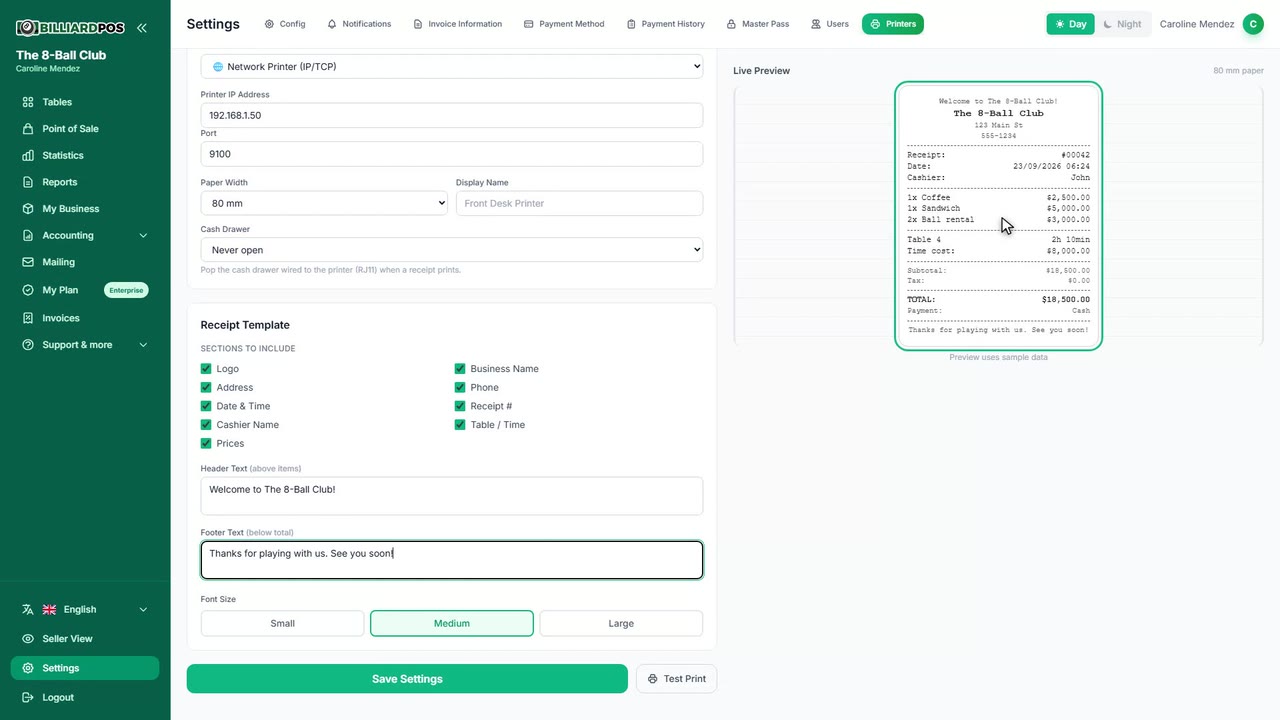
Master password
Set a master password that guards the sensitive day-to-day actions. You decide whether it is needed to delete a product from a tab or cart — for everyone, for everyone except the admin, or for no one — and whether it is needed to apply an order-level discount, both at the table checkout and in the POS. Removing a discount never asks for it, and the check runs on the server, so a discount is only stored once the password is right. Voiding orders relies on this password too.
#master-password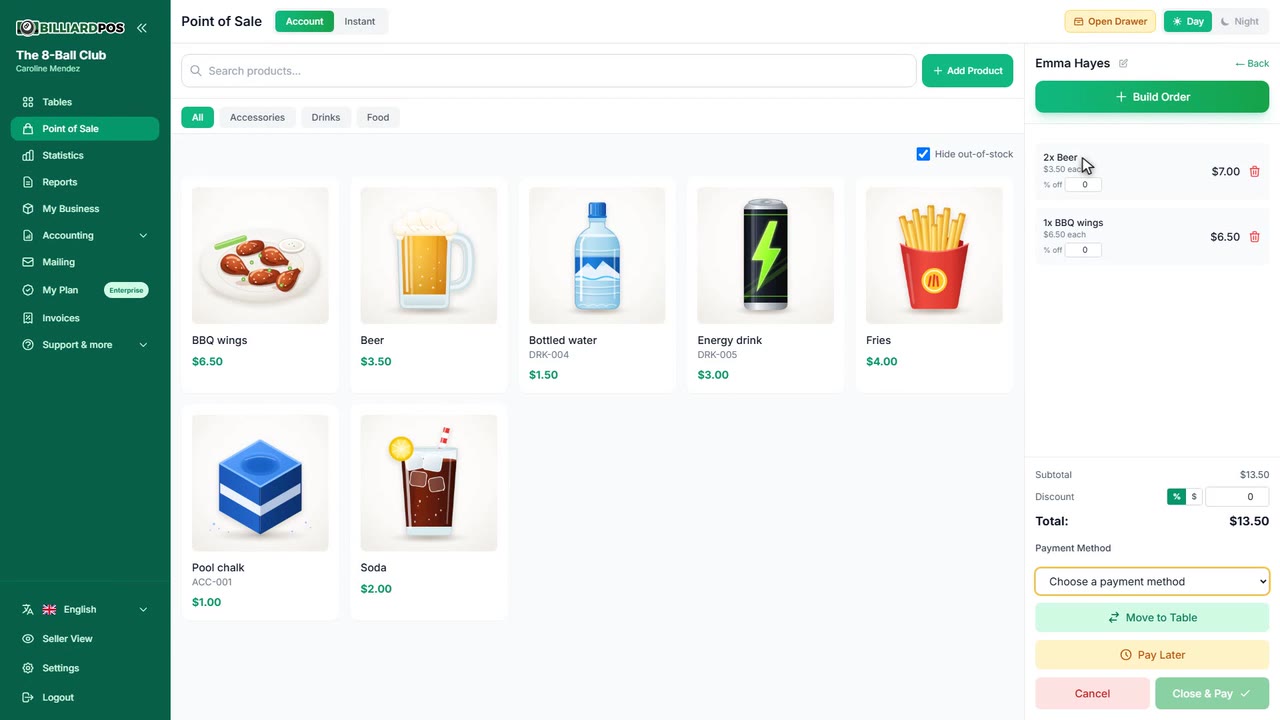
Users
Add your team with their name, email and password, and give each one the Staff or Admin role; a company can have several admins with the same privileges. You can deactivate an account without deleting it, and nobody can change their own role.
#users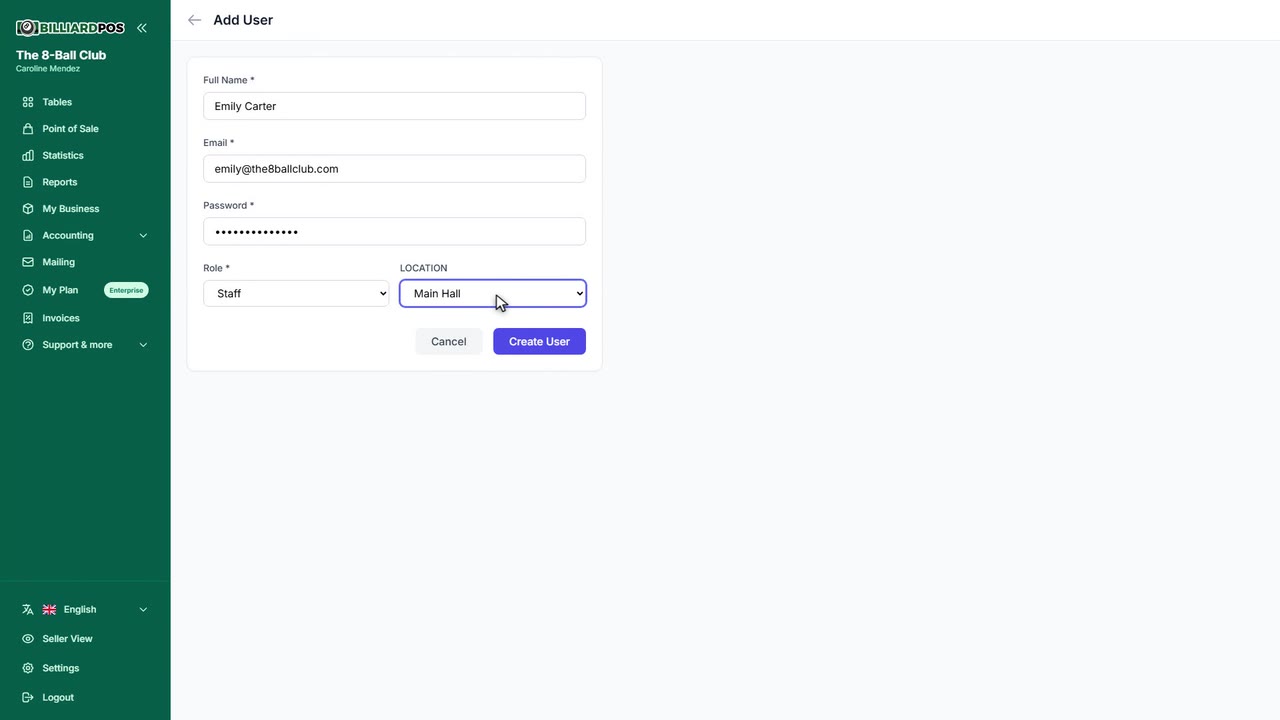
Move a game to another table
Moves a game that is already running to another table without losing anything: the time played so far, each player's consumptions and the running amount all follow the group. The partner discount, the rate picked at the start and the countdown, if there was one, travel with them, so the customer ends up paying what they expected. The destination table has to be free — a game in progress cannot be merged into another one.
#move-a-game-to-another-table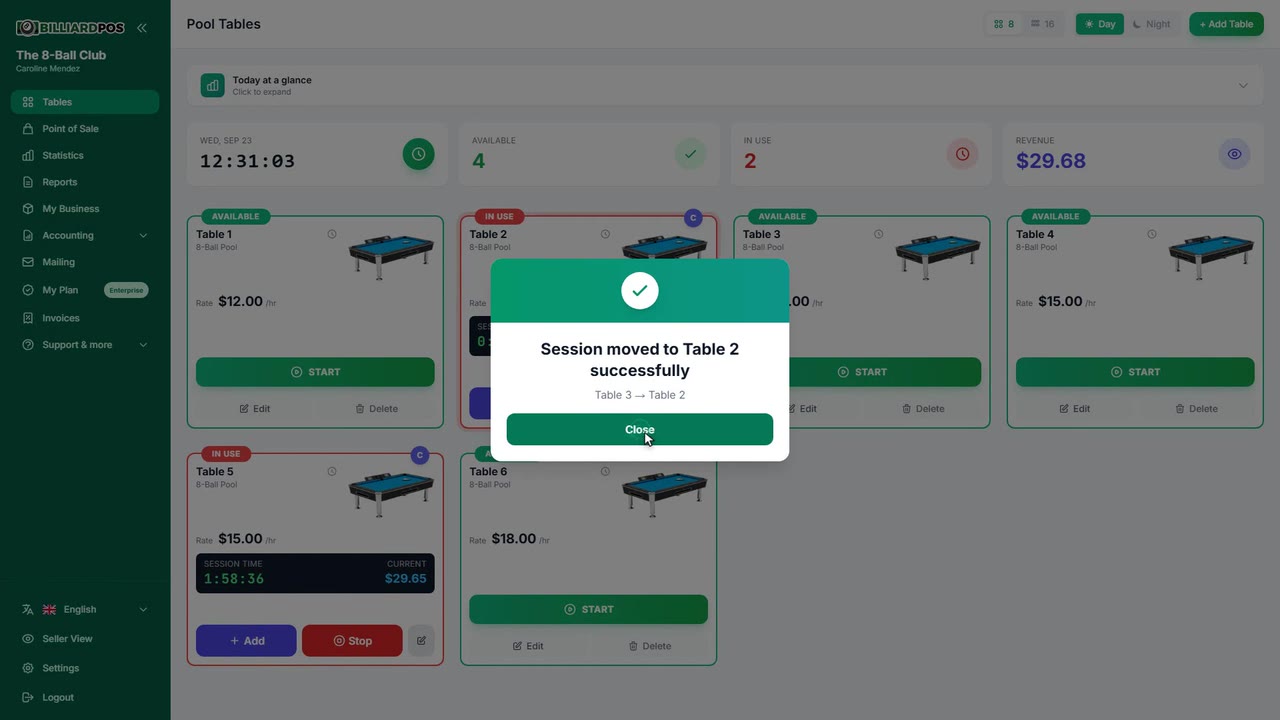
Move one player's consumptions to the POS
Takes what a single player has consumed off the table and moves it onto an open POS tab in their name, leaving everyone else untouched. Unlike moving the whole bill to the POS, here the table keeps playing and its time is still billed on the table: only what that player ate and drank moves. It is for the one who leaves before the rest, or who would rather carry on with a tab at the bar.
#move-one-players-consumptions-to-the-pos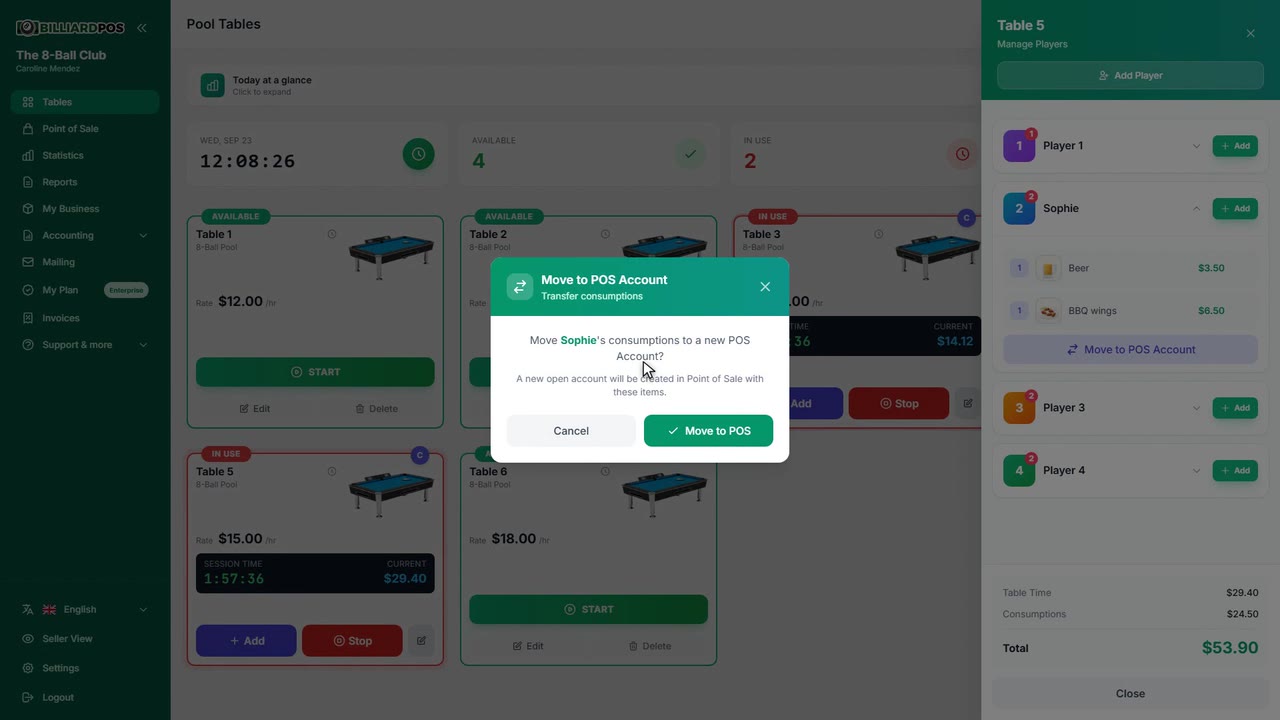
Part-payments on account
A customer can leave money on account while the table is still running, entering the amount and the payment method. That part-payment counts as takings for the shift and is subtracted from the total when the table is finally closed, so checkout only asks for the difference. Several part-payments can be taken on the same game: they add up, and each is noted on the session with its method.
#part-payments-on-account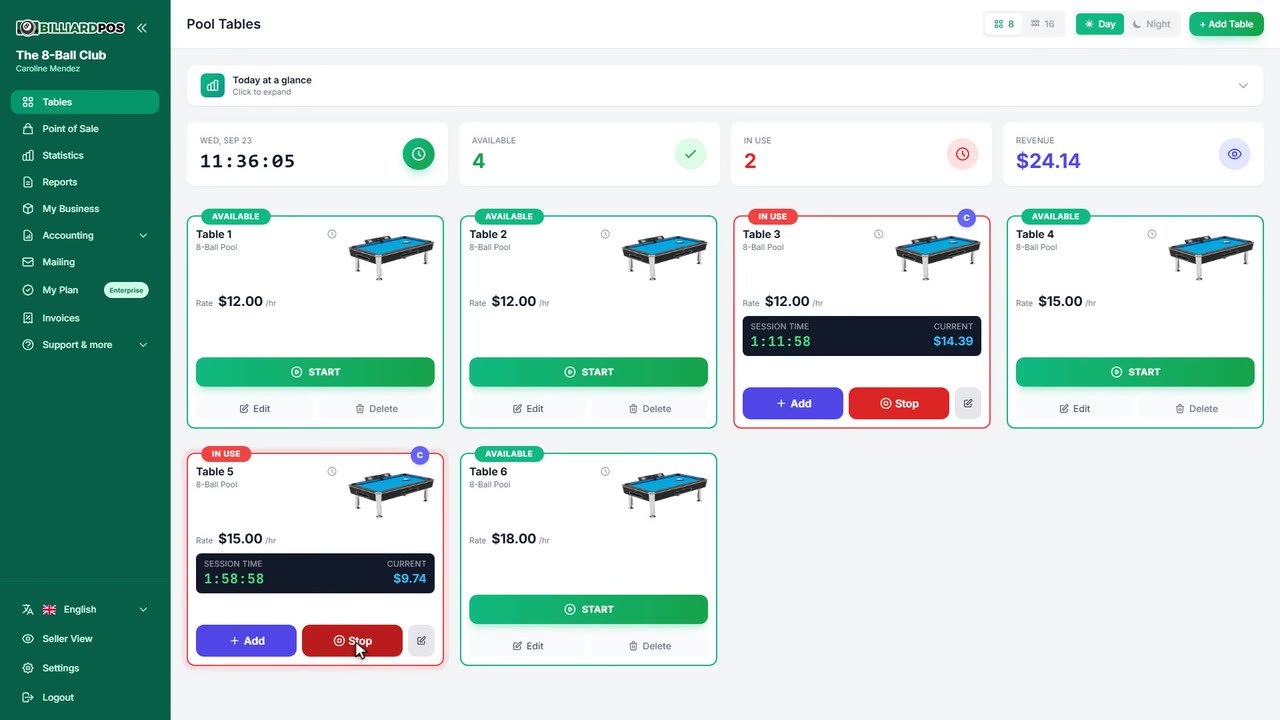
POS tabs: merge, rename and pay later
Open POS tabs work like a notebook: you can rename one when the customer's name was written down wrong, merge two into one — whole, or moving only the lines you pick — and mark a tab as "pay later" with a note so it is neither lost nor blocking the close. Open tab names cannot repeat, so two different tabs are never mistaken for each other. Renaming and merging only work while the tab is still open.
#pos-tabs-merge-rename-and-pay-later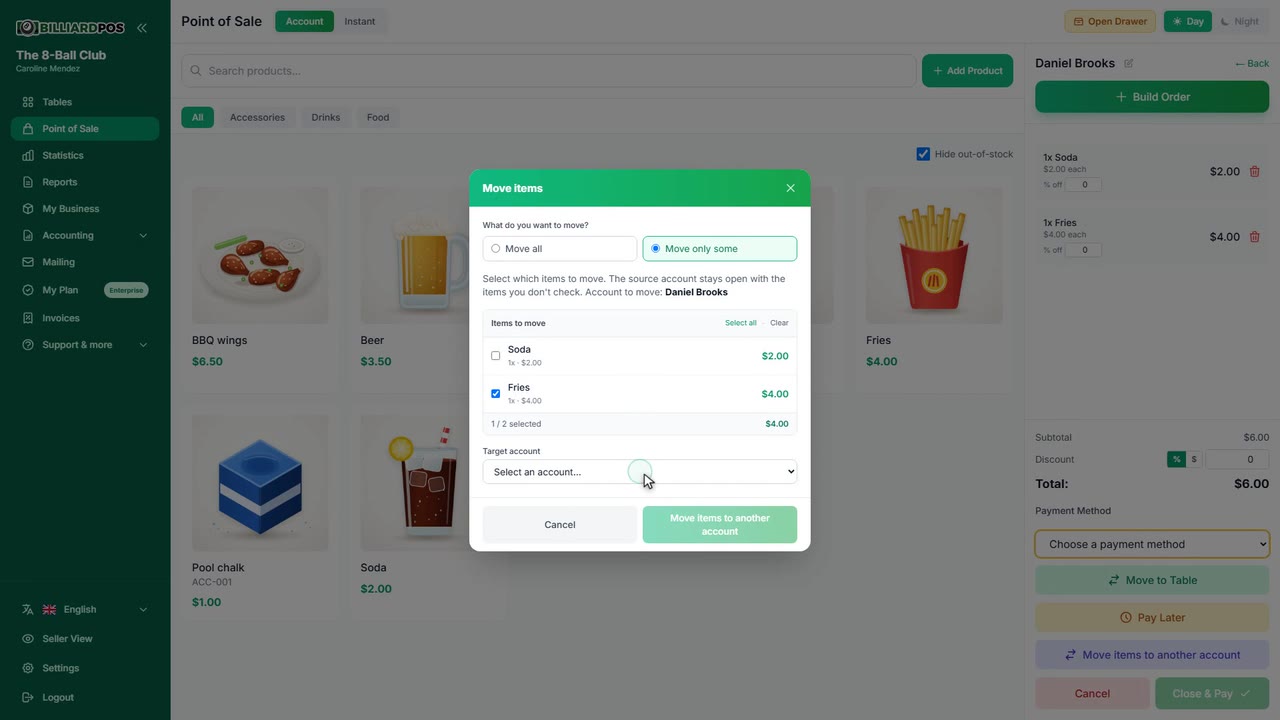
Reports and Excel export
The sales summary that arrives by email carries a multi-sheet Excel file: the day with its hour-by-hour breakdown and its best sellers, the week, the month, and the year summarised month by month. On top of that, the statistics screens and the sales book export to CSV, ready to open in any spreadsheet. The sales book can carry an extra column naming who opened each sale, if you switch that option on under notifications.
#reports-and-excel-export
Sales reports as PDF
Three PDF reports to print or hand to your accountant: Sales — total, transactions, average ticket, comparison with the previous period, breakdown by origin and by payment method and a top-products list —, Products — ranking, sales by category and the stock that never sold, valued at cost — and Tables — hours played, sessions, revenue, average occupancy, a table-by-table breakdown and a day-and-hour heat map. You pick the date range, up to 366 days, and can narrow it by time of day, by category or to one table. Each opens in the browser or is emailed as an attachment, and only admins see them.
#sales-reports-as-pdf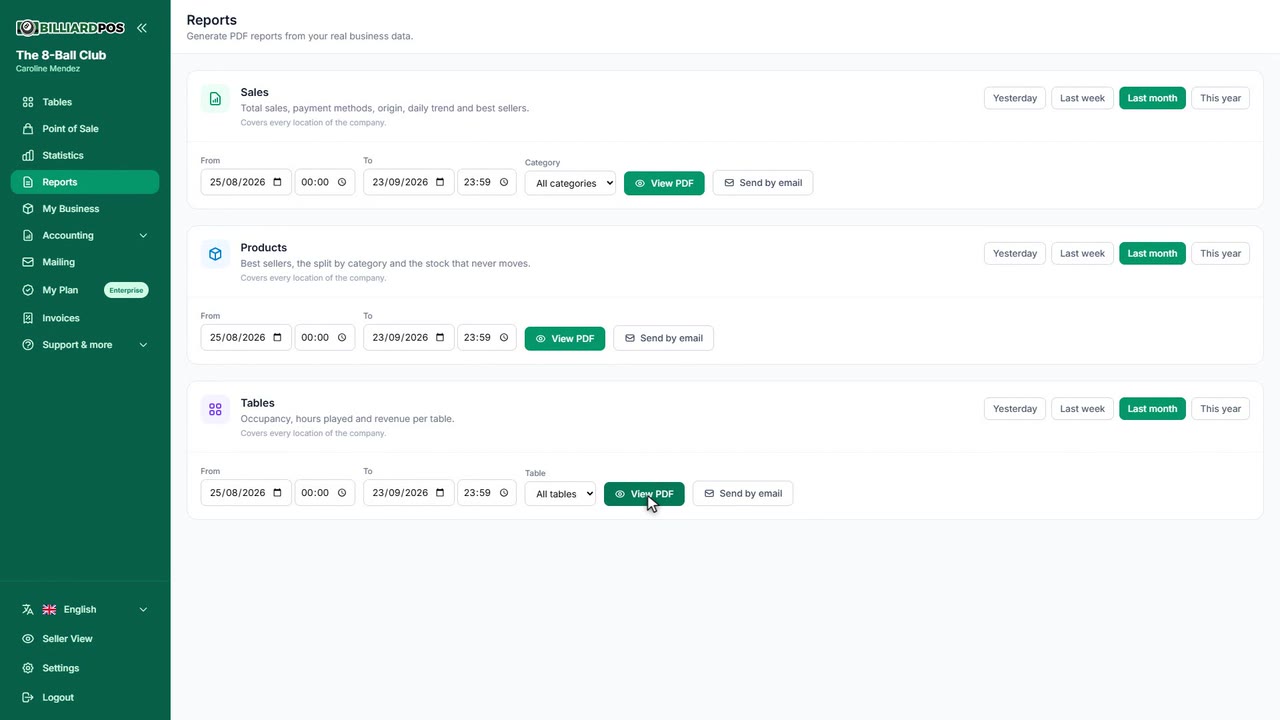
Purchases and suppliers
Record every supplier invoice as a document, with its number, date, expense category and line items. Each line can bring stock into a product or an ingredient, or touch no inventory at all when it is a service, and the cost is updated with what you actually paid. Suppliers are stored with their contact, phone and email so you can reuse them, and each purchase total feeds the purchases book and the balance in the accounting module.
#purchases-and-suppliers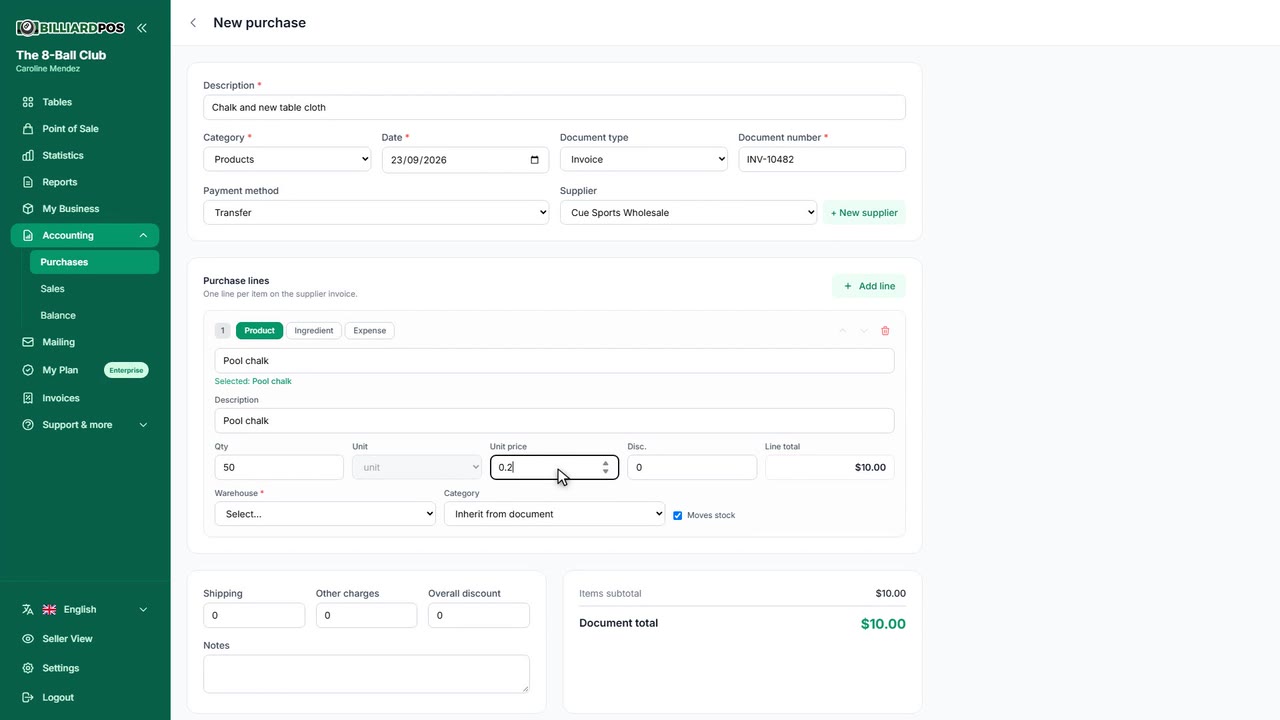
Deletion log
A screen listing every line anyone has deleted from a tab, a cart or a table: which product it was, how many units, at what price, who deleted it, when, and the reason given. You browse it by date range, and it is how you find out whether a product "disappeared" from a tab before it was paid. It pairs with the master password: if you require a password to delete, every removal is authorised as well as recorded.
#deletion-log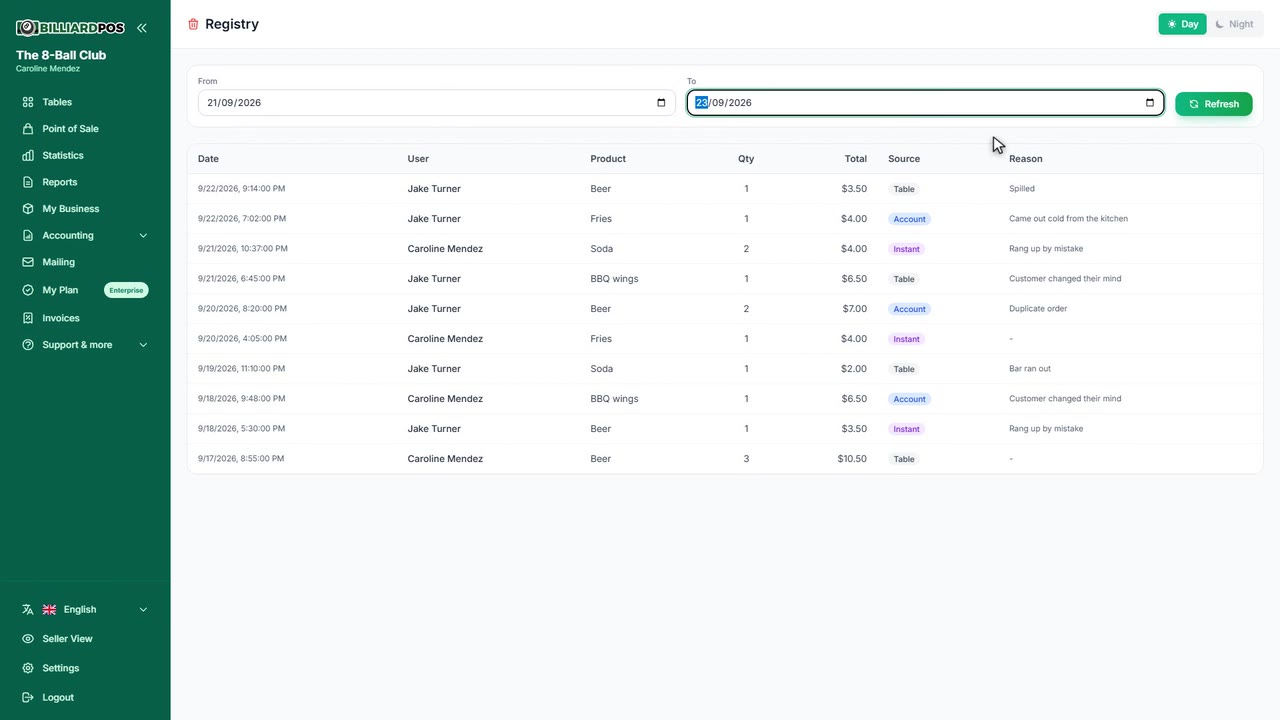
Free modules — included in every plan; switched on in Settings
Tap a feature to expand it.
Minimum payment
Sets a minimum charge per session, expressed as a percentage of one hour. At 50%, a table closed after ten minutes is still billed as half an hour; past that point the real time is charged. It stops very short games from being almost free, and it works as a floor on the table's time charge rather than as money taken upfront.
#minimum-payment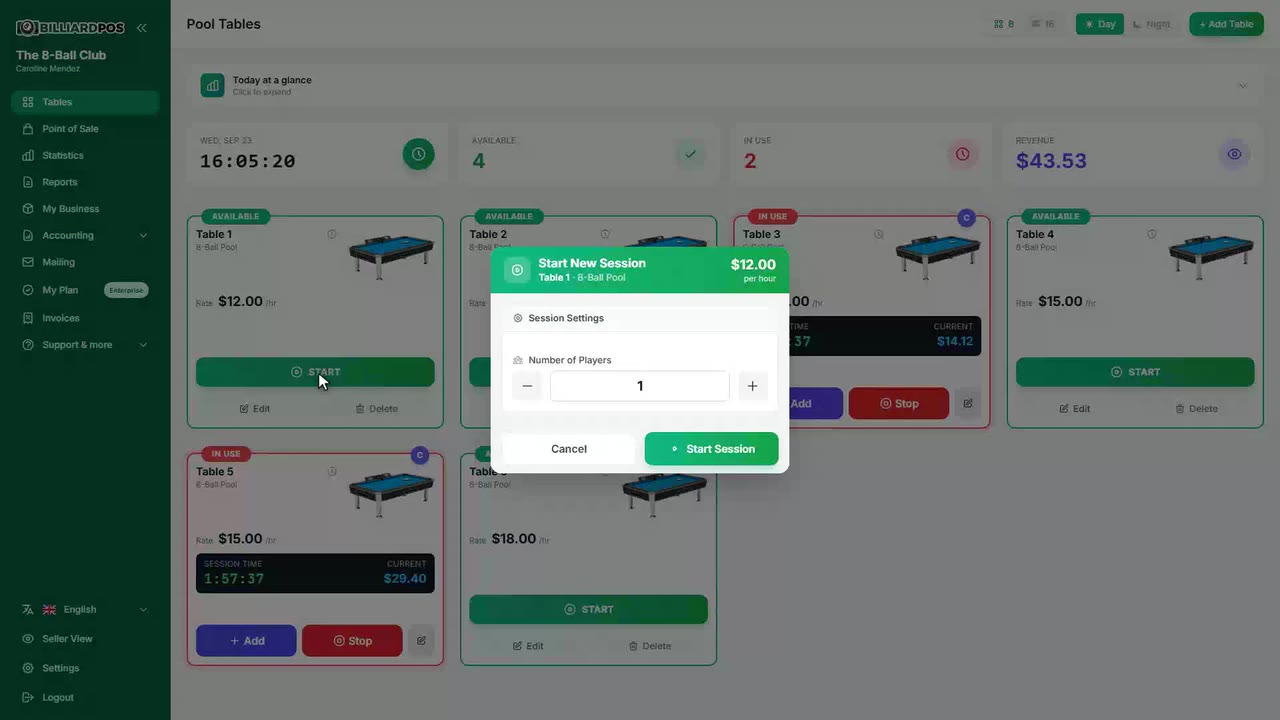
Price rounding
Rounds the amount actually charged to the increment you set, either down or up. The increment is expressed in your currency's smallest unit: 50 means 50 pesos on a currency with no decimals, and 50 cents on a two-decimal one. It is the answer to a country where small coins no longer circulate, and it applies the same way at the table checkout and in the point of sale.
#price-rounding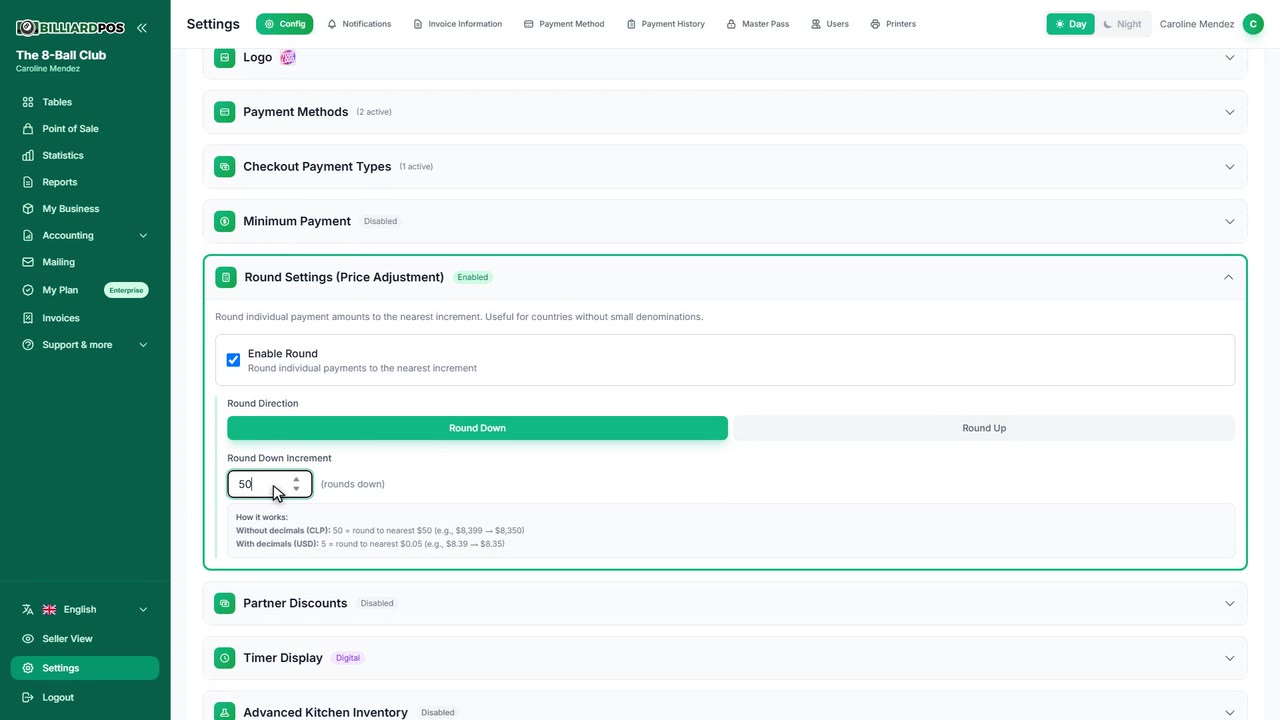
Partner discounts
Build a list of named discounts with their percentage — members, students, the house team — and the operator picks one when starting a table session. The discount stays with the session all the way to checkout, and if the game moves to another table it travels with the customer. Because the list lives in Settings, staff cannot invent percentages on the spot.
#partner-discounts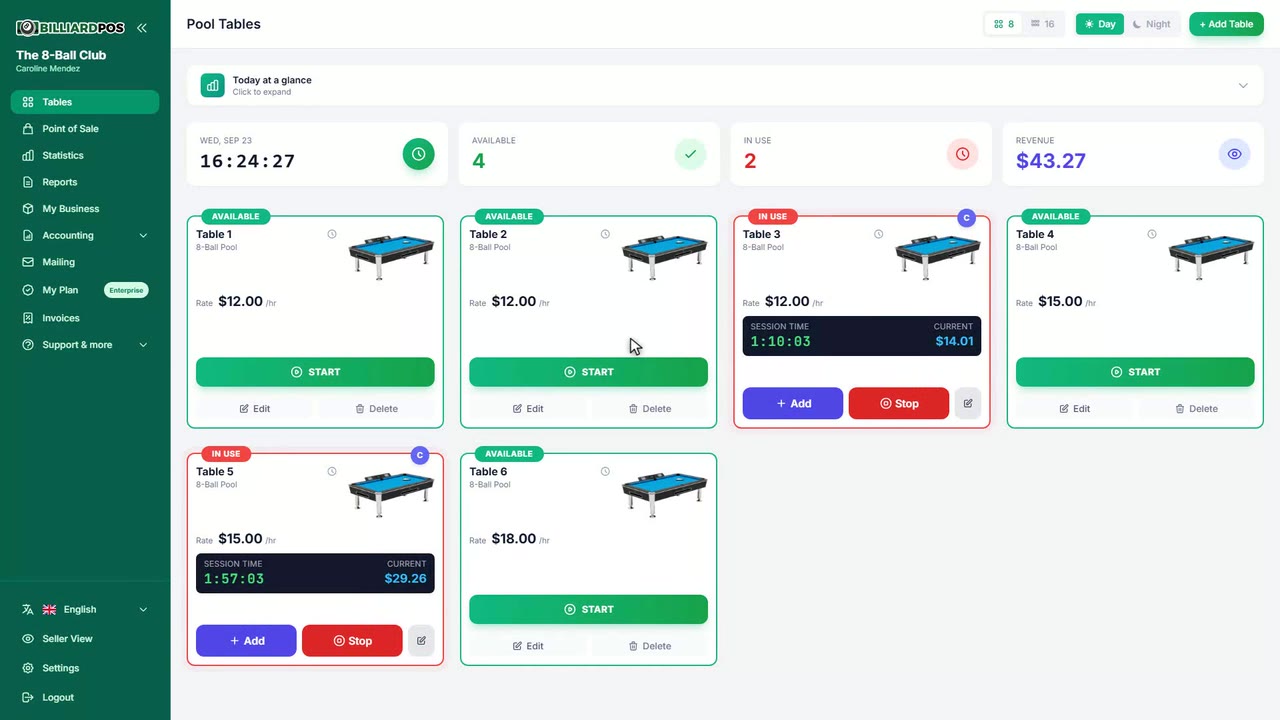
Timer display
Choose how the timer reads on the table cards: digital, 01:37:45, or text, 1h 37m 45s. It is an account-wide preference and it matters most at a distance, on a screen hanging in the room. It changes nothing about how a session is billed — only how the time is read.
#timer-display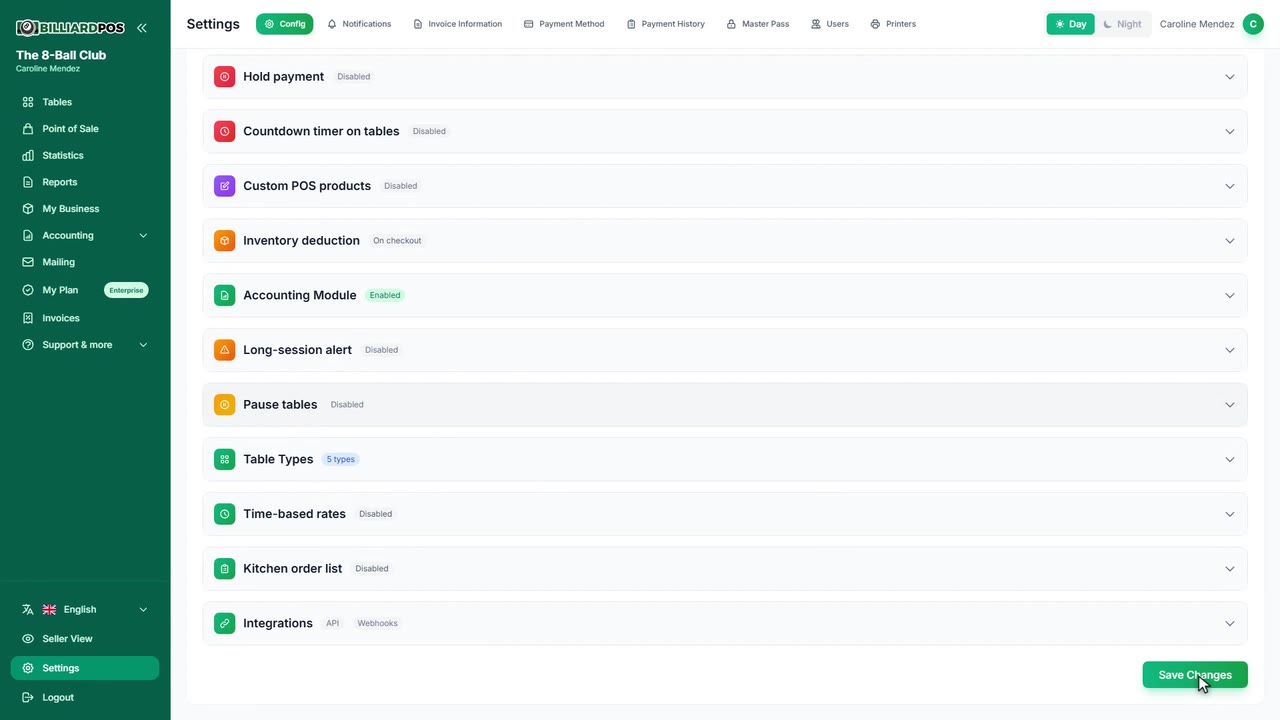
Advanced kitchen inventory
Turns on ingredients and recipes: you register each ingredient with its unit, cost and waste factor, build the recipe for every dish or cocktail, and ingredient stock is deducted automatically when the product is sold. You can work in metric (kg, g, ml, l) or imperial (lb, oz, fl oz, gal) and get an email when an ingredient drops below its threshold. It sits alongside plain product stock, which is still counted in units.
#advanced-kitchen-inventory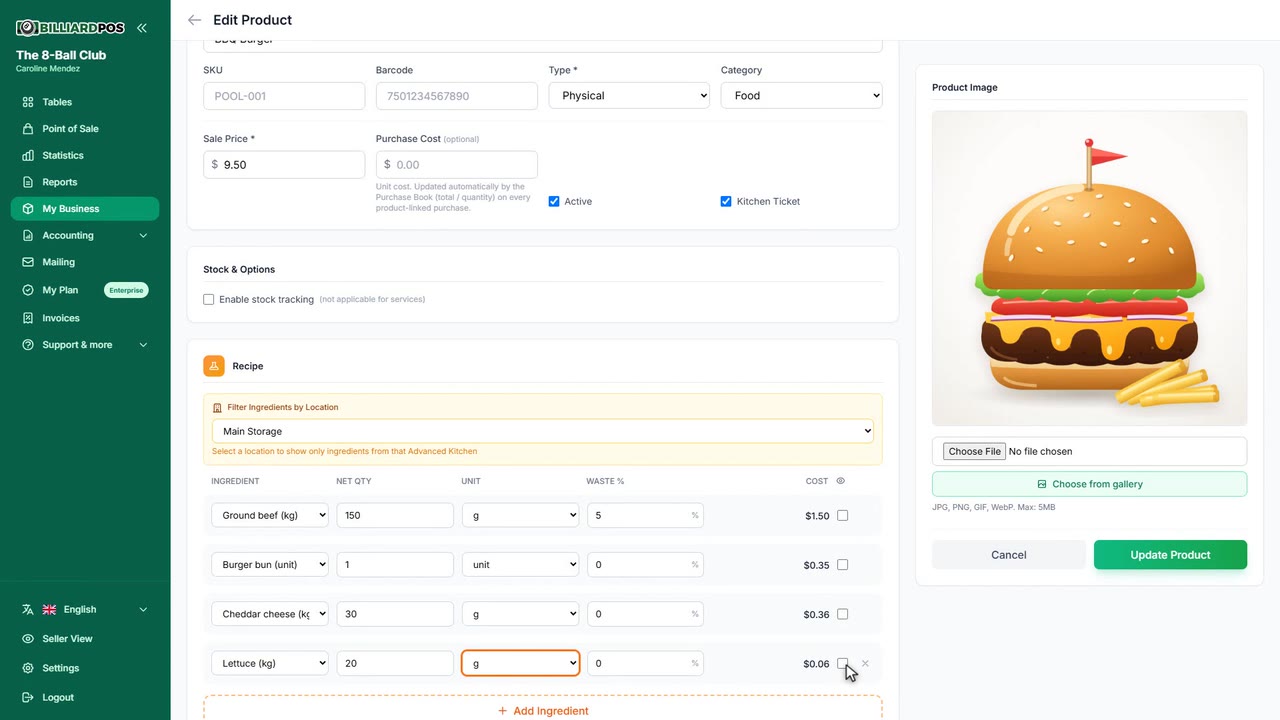
Secondary table prices
Lets every table carry a second hourly rate, usually a discounted one, alongside the normal rate. When a session starts the operator picks which one applies, and you can leave one of the two preselected for that table. Switching the module on adds the secondary rate field to the add/edit table form.
#secondary-table-prices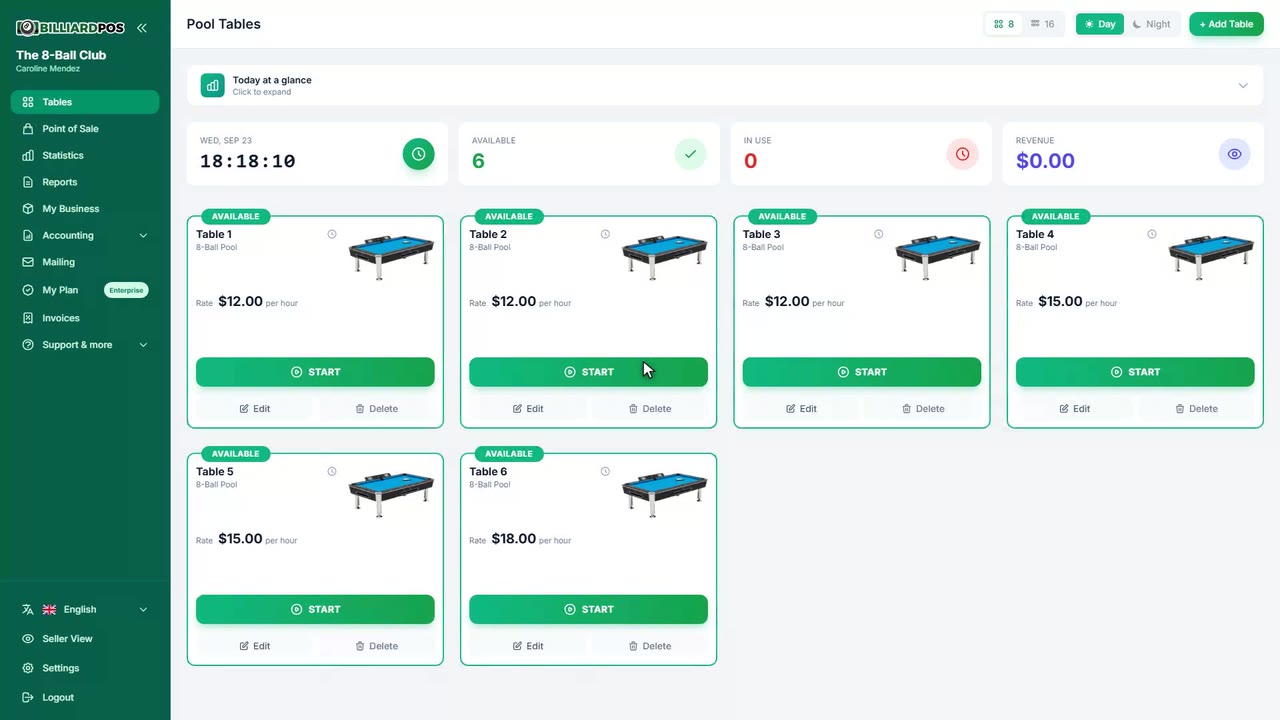
Per-player hourly billing
Charges table time by how many people are playing instead of one flat table rate. You set how many players the base rate covers and how much each extra player costs per hour; leave that amount at zero and every extra player adds another full table rate. The live counter and the checkout total both use the session's player count, so adding or removing someone changes the price straight away.
#per-player-hourly-billing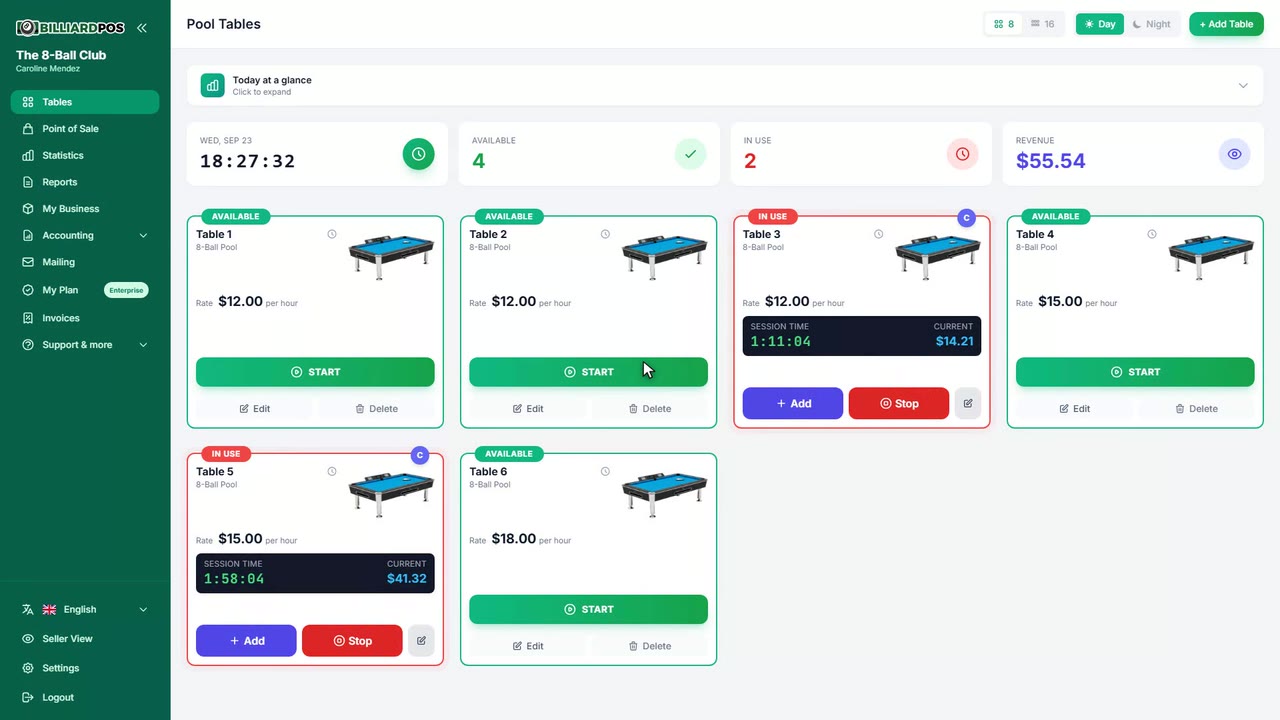
Cash shifts
Requires staff to open and close a cash shift before they can use Tables or the point of sale. Opening declares the starting cash; closing gives you sales by source, income by payment method, cash in and out, and the expected versus counted cash with the difference between them. With the module off anyone can operate without a shift; with it on, the requirement falls on non-admin users.
#cash-shifts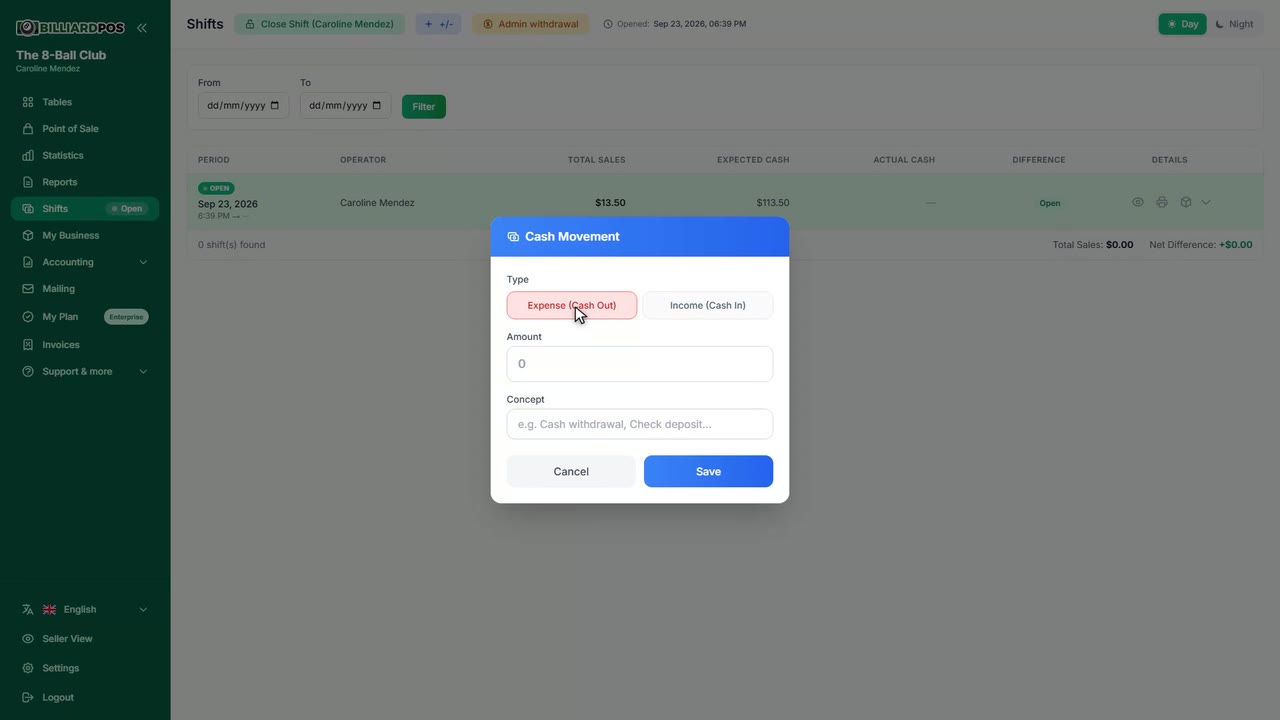
Free checkout
Lets you close a table without charging for it — the owner's own game, a comp, a complaint — always asking for a reason, which is kept with the session. You choose how it is recorded: keep the session at zero, so it still shows in the session list as table usage, or do not record it in statistics at all, which frees the table without adding anything to reports. It respects your cash-shift rules exactly like any other checkout.
#free-checkout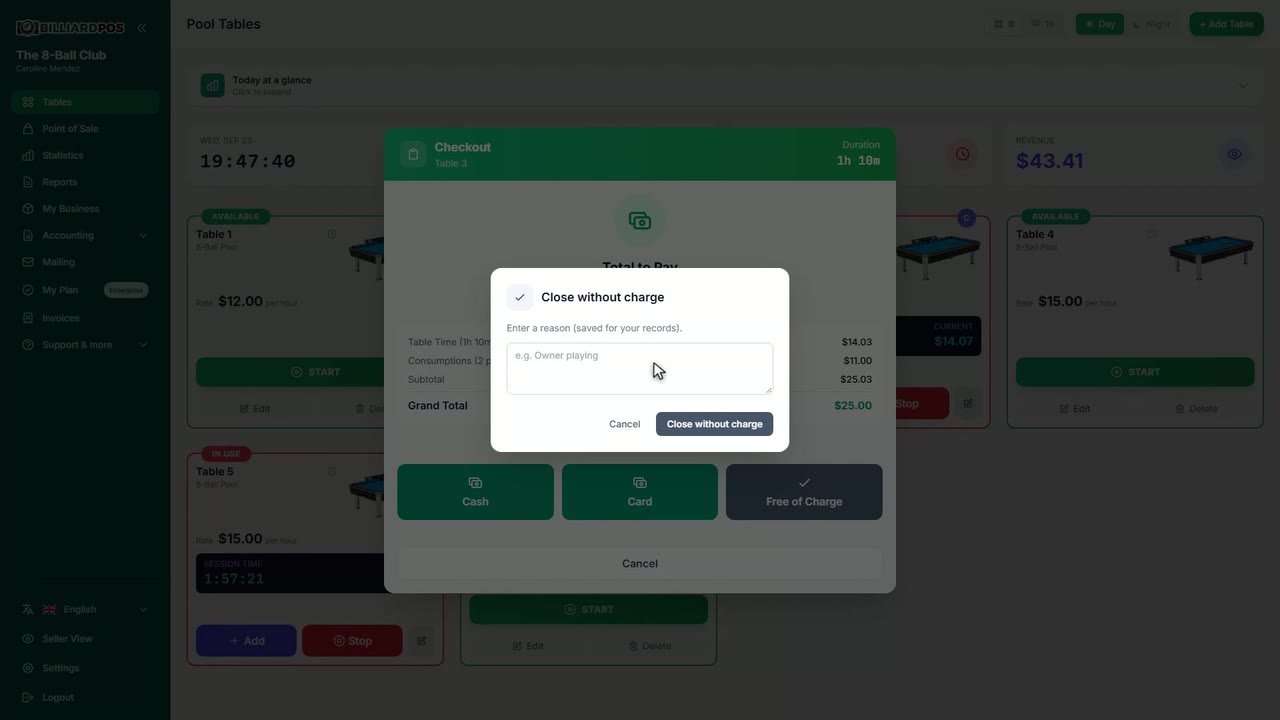
Void orders
Voids an open table or sale that is never going to be collected: it closes at zero, counts towards neither sales nor the cash shift, and stays on record with its reason, its comment, who voided it and what it would have been charged. Stock comes back line by line — you tick only what physically returned to the shelf — while recipe products are not returned, since a cocktail that was made cannot be un-made. It needs a master password to be configured, or the option never appears at all.
#void-orders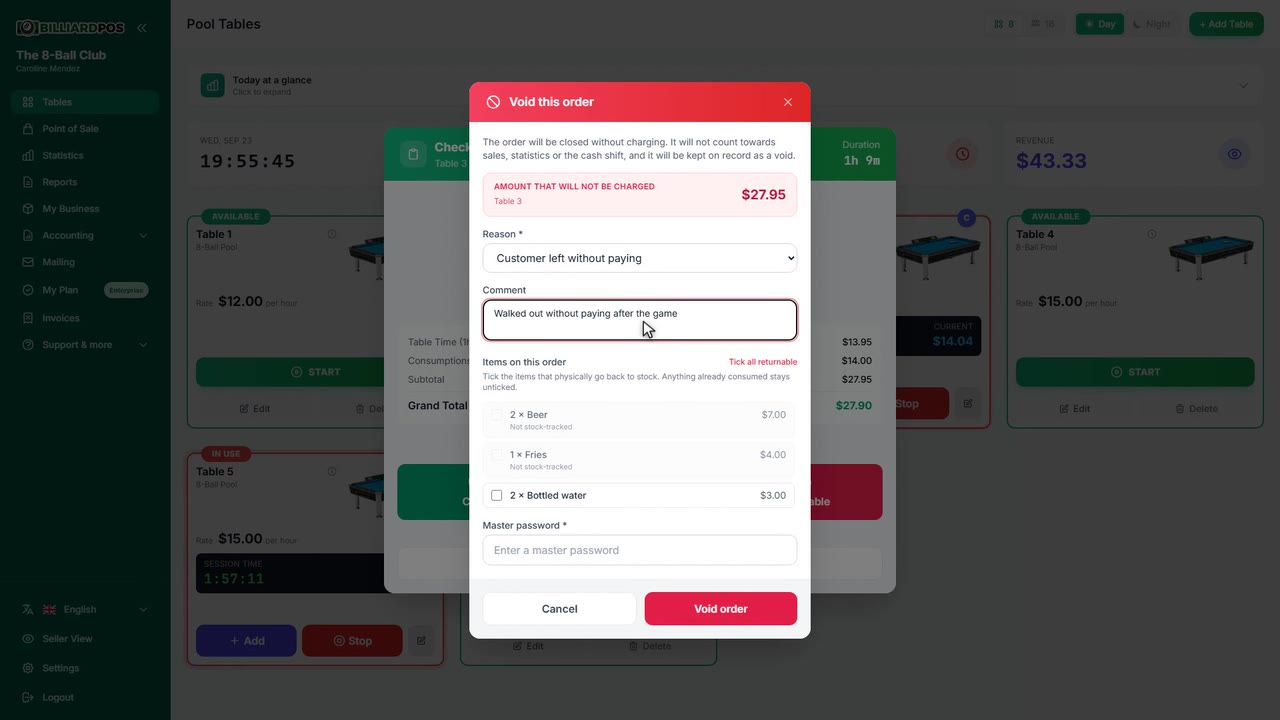
Backdated table start
For when someone forgets to start the table. As you open the session you can enter how many minutes the group has already been playing, or the time it really started, and the table begins with that time already on the clock. The limit is 12 hours, and the time is read in your venue's time zone rather than off the till computer's own clock.
#backdated-table-start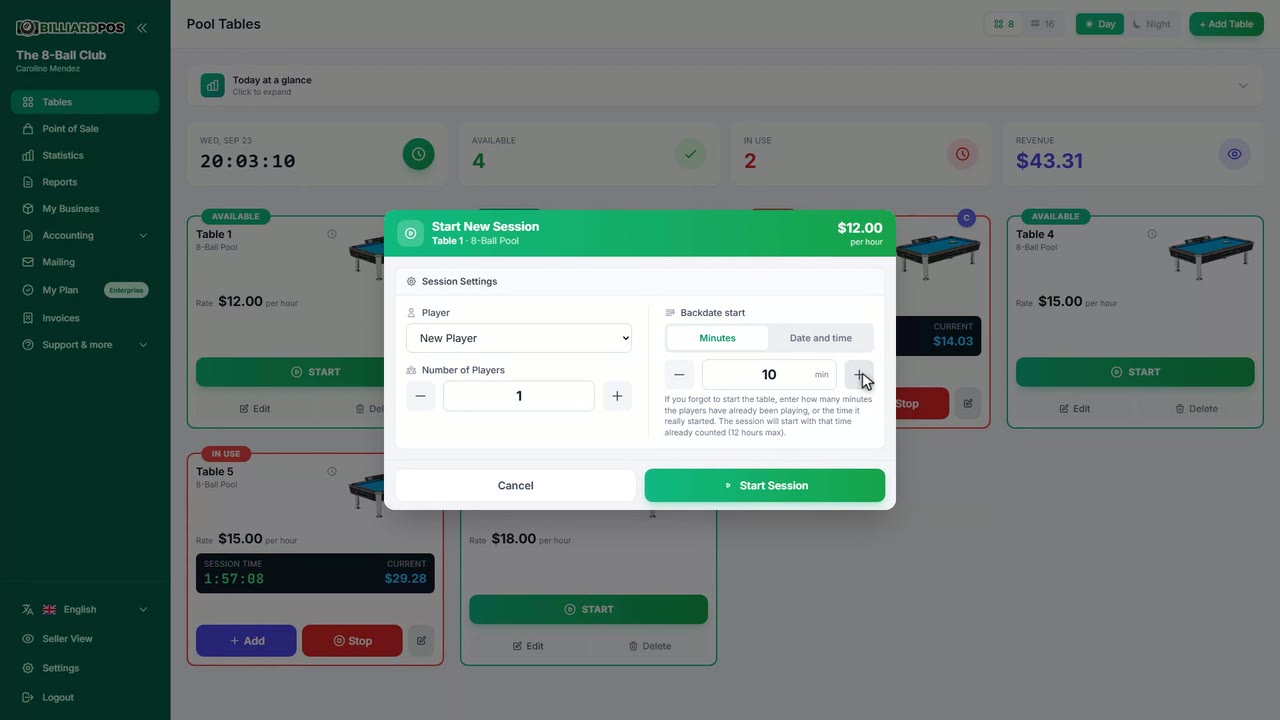
Hold payment
For when the group has finished playing but is not ready to pay yet: you stop the time and leave the bill on hold, with the amount frozen exactly as it stood when you stopped it. The table is freed for the next group and its light goes off, and the bill stays in sight on the tables page as a red card whose only action is its checkout; while it is on hold no consumptions can be added to it. A cash shift cannot be closed while bills are on hold either: trying lists each one, with its amount and how long it has been waiting.
#hold-payment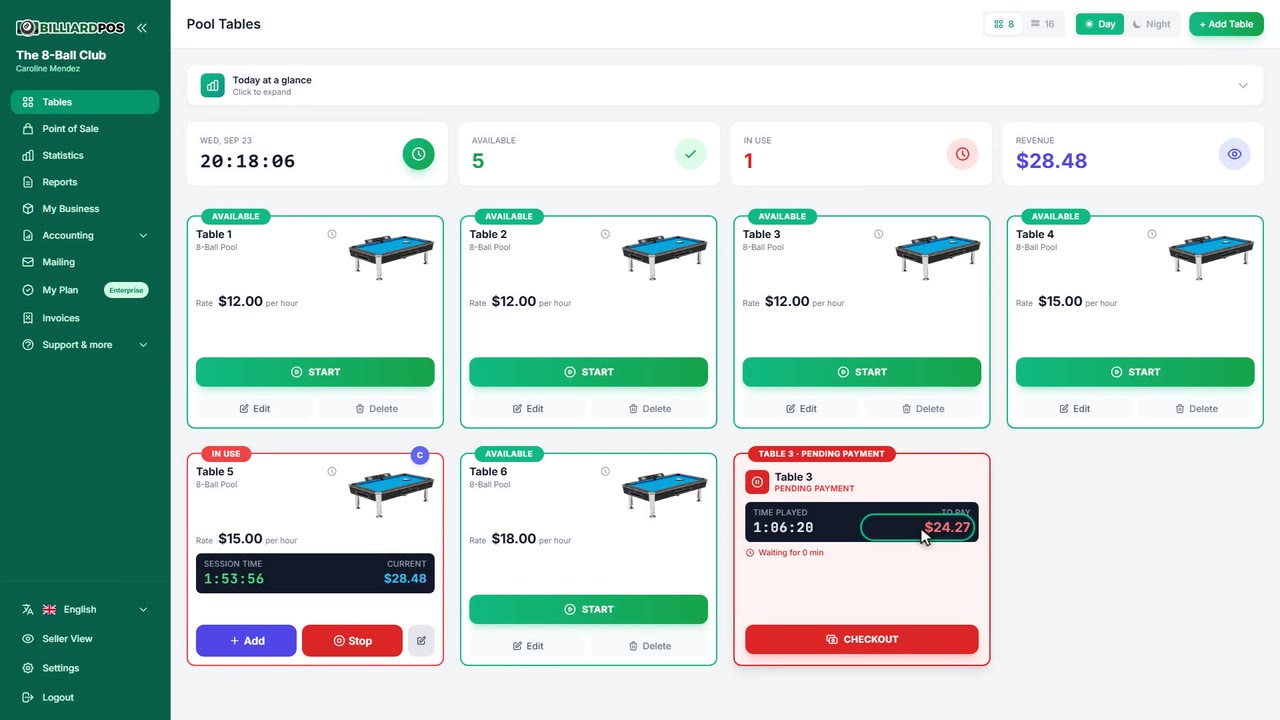
Countdown timer on tables
Lets a table start with a fixed rental time — three hours, say: the card counts down and, when it reaches zero, an alarm sounds and a notice stays up until an operator dismisses it. You can also define time packages with a name, a duration and a flat price that staff pick when opening the table; a package has no proration and no overtime. On a plain countdown with no package, time played past zero is still billed as usual.
#countdown-timer-on-tables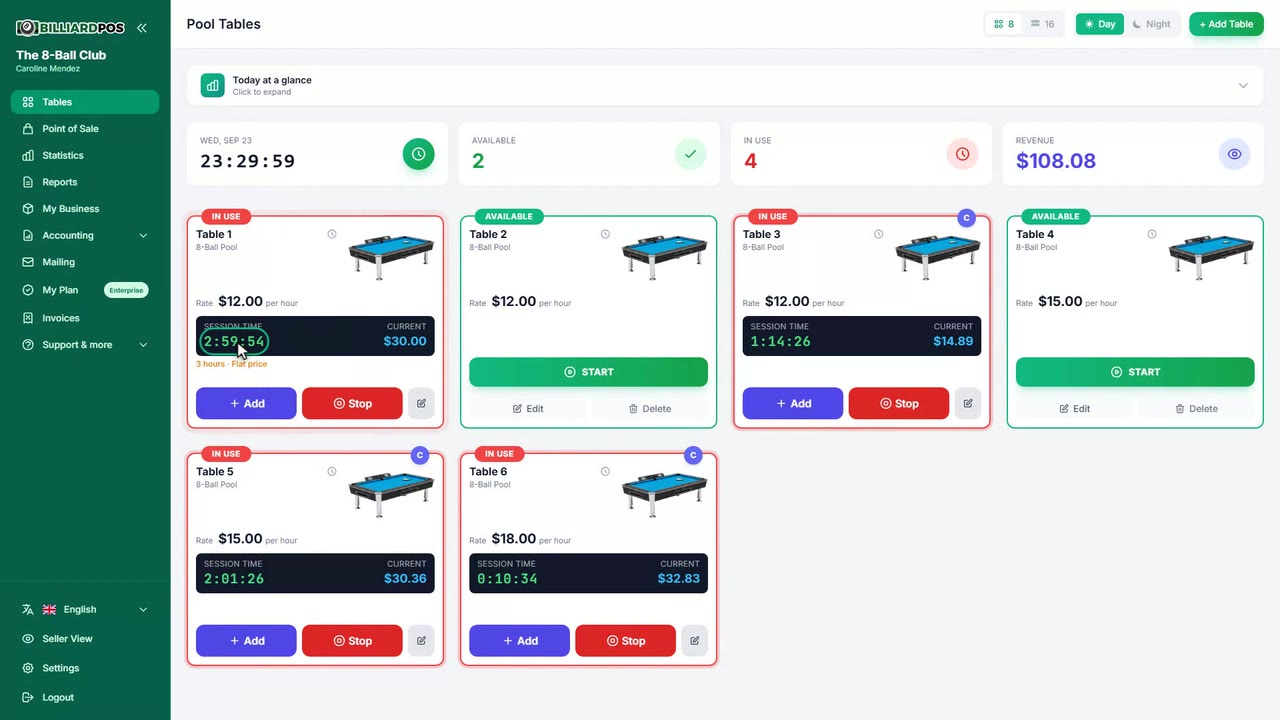
Custom products in the POS
Adds an item with a free-form name and price to the POS cart or to an open tab, with no need for it to exist in the catalog. It covers what you sell once in a while: a cue rental, a repair, something you have not set up as a product yet. The operator gets a button in the POS to type the name and the amount, and the line goes straight onto the customer's tab.
#custom-products-in-the-pos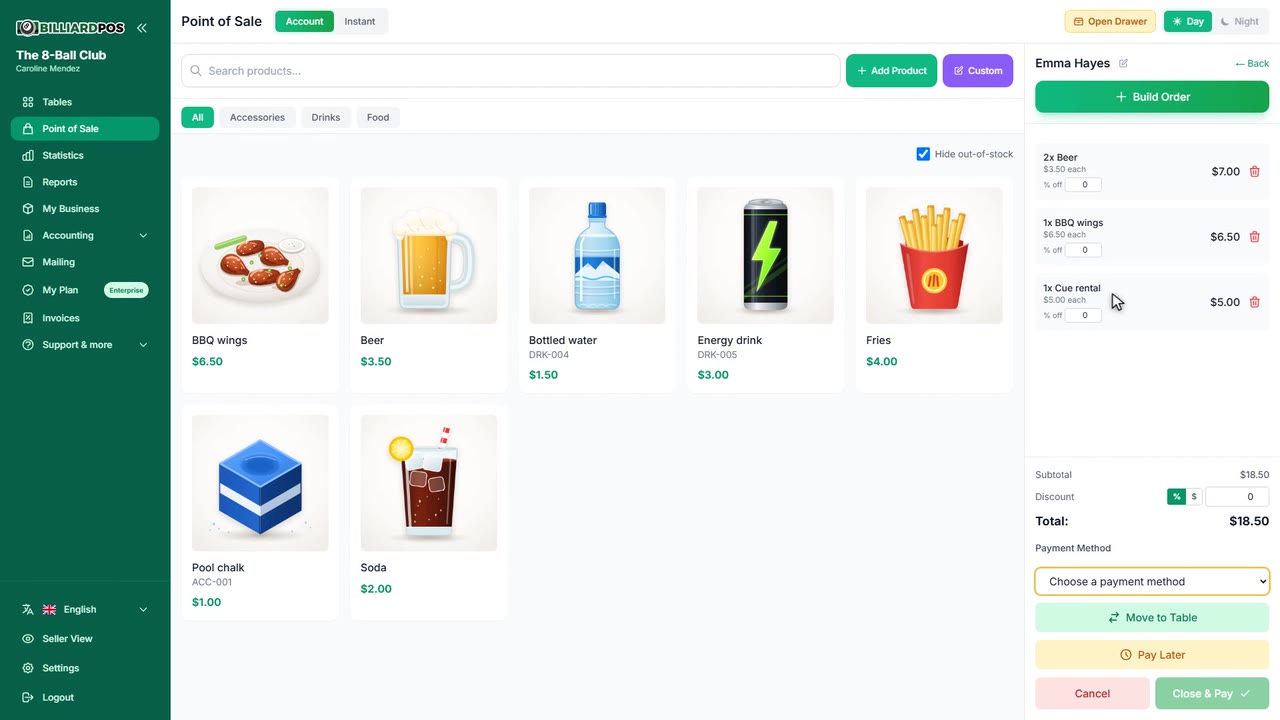
Inventory deduction mode
Decides when stock is taken off for products sold on open POS tabs. On sale, stock is deducted the moment the item is added to the tab and put back if it is removed or cancelled, so your count matches at shift close; on checkout, which is the default, it is deducted when the tab is paid and closed. It is the difference between counting what has already left the fridge and counting what has already been paid for.
#inventory-deduction-mode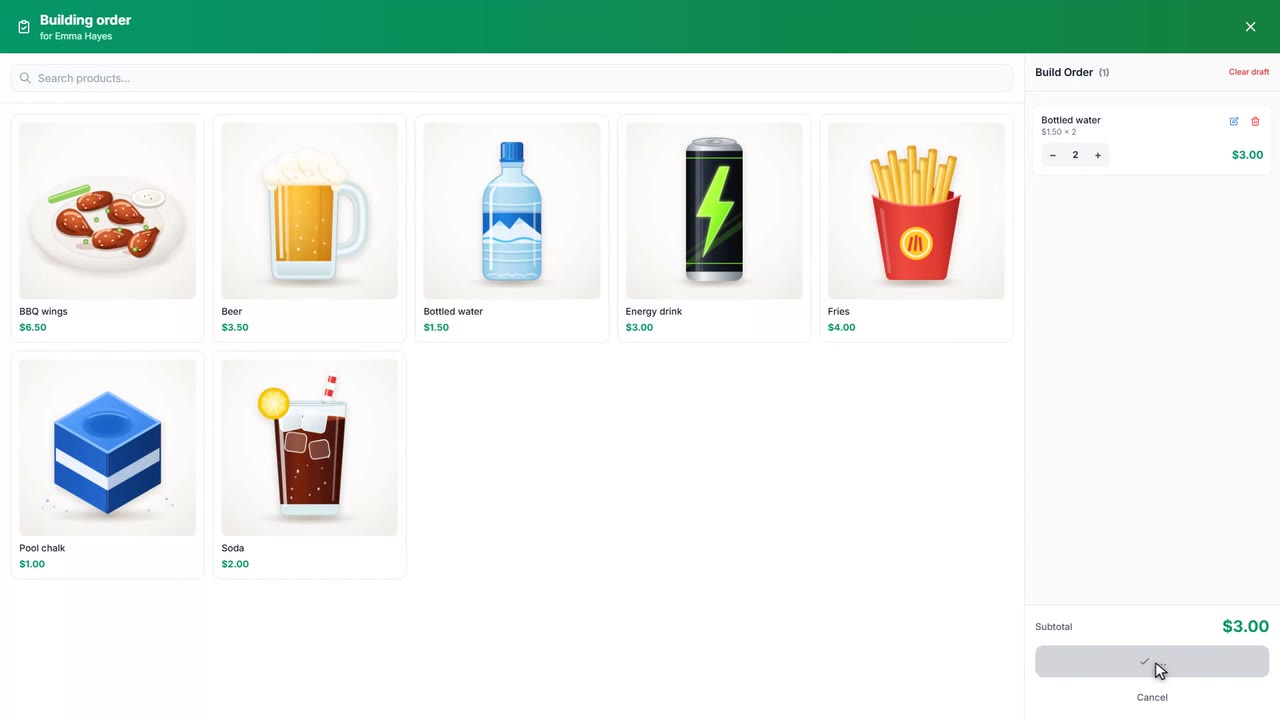
Accounting module
Adds an Accounting section to the sidebar with a purchases book, a sales book and an income-versus-expenses balance. The purchases book is where you record supplier invoices by category, and the sales book gathers what was billed over the period, with date filters and export. It stays hidden until you switch it on in Settings.
#accounting-module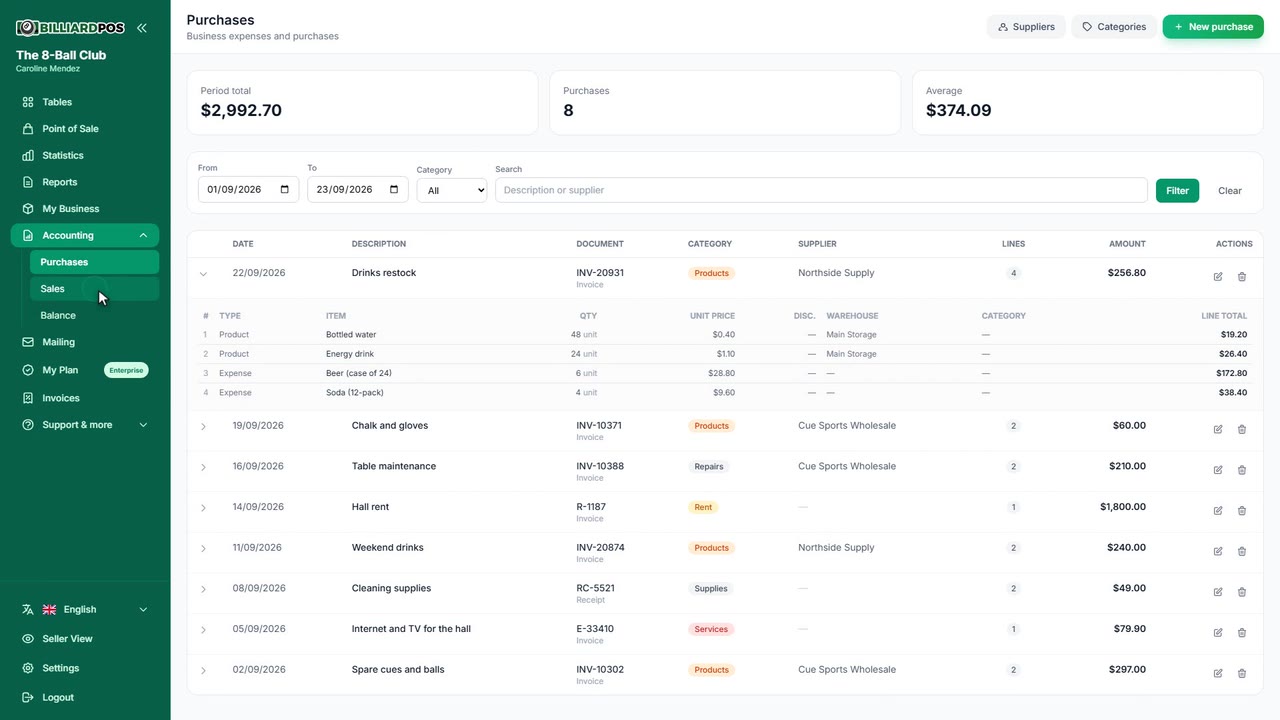
Long-session alert
Flags on screen any table whose session runs past a limit you set, so nobody forgets a table that has been open half the night. You set the threshold in minutes — 180, three hours, is a sensible starting point — and zero turns the alert off. It is a visual warning only: it neither closes the table nor changes what is charged.
#long-session-alert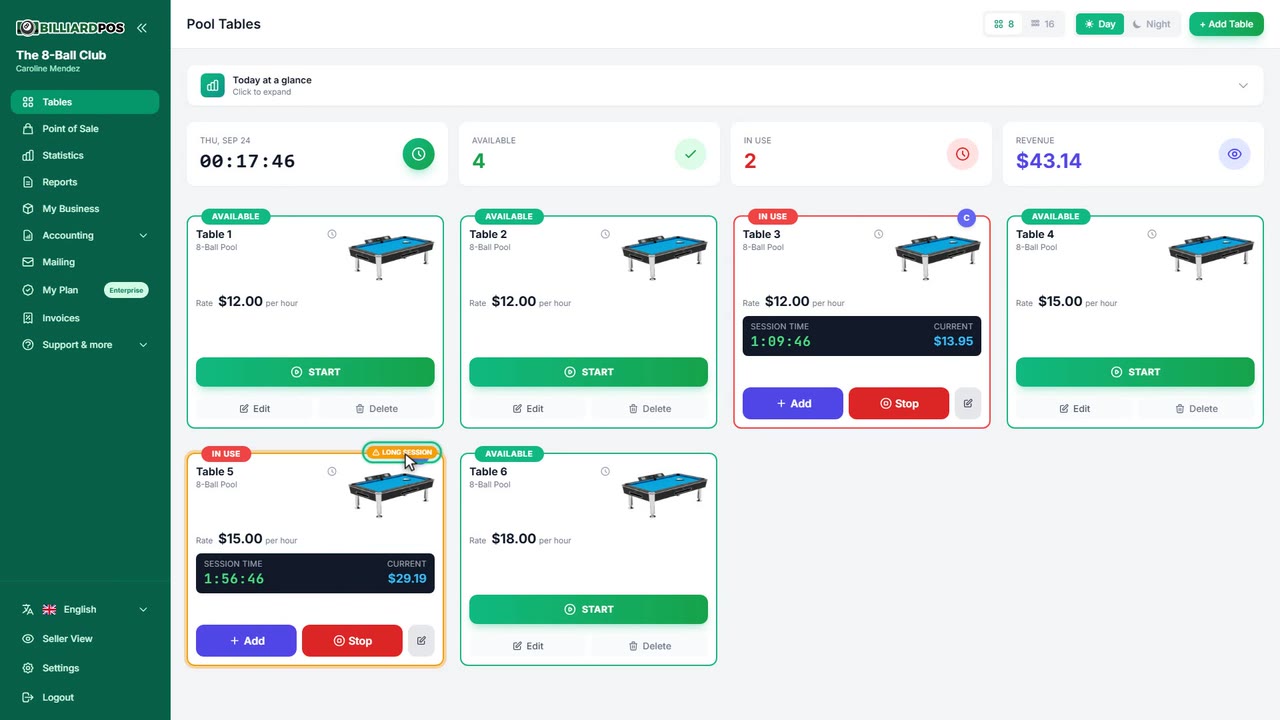
Pause tables
Lets you freeze a table's timer when the players stop — for food, for the bathroom — and start it again afterwards. While it is paused the clock does not move and, by default, the running total stops growing until the operator resumes the session; if you prefer, paused time can be charged at a percentage of the rate, from 0% to 100%. With the module off, the pause button simply does not appear on the table cards.
#pause-tables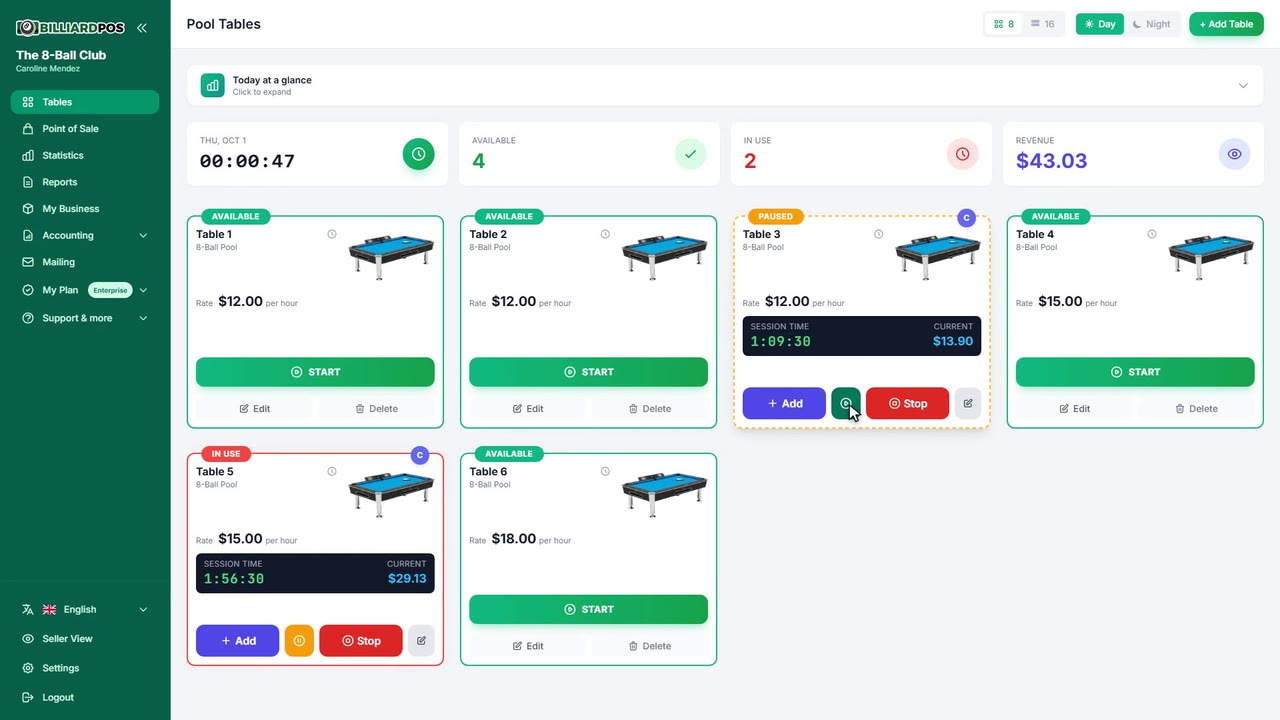
Table types
Customize the list of table types in your room — 8-ball, carom, snooker, foosball, whatever you actually have — and those are the options offered when you create or edit a table. You can add your own, drop the ones you never use, and reset to the defaults at any time. It is what lets you tell tables apart on screen and group them in reports.
#table-types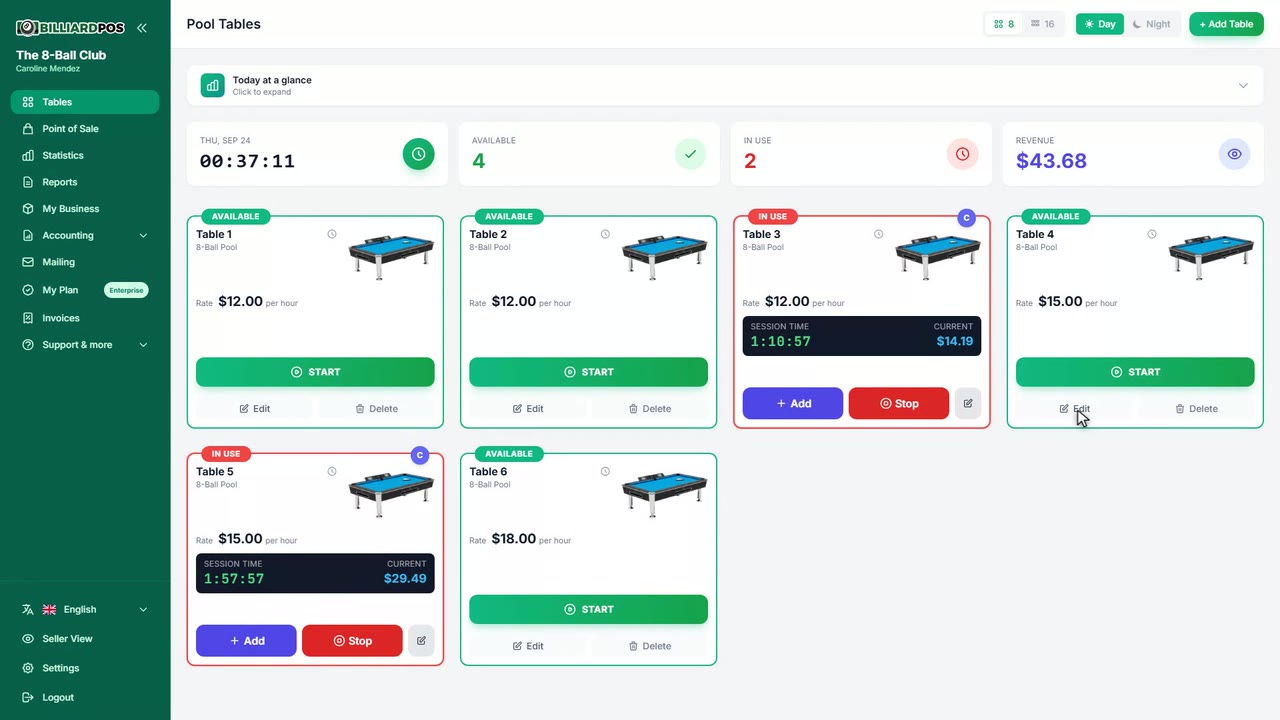
Time-based rates
Charge a different hourly rate depending on the day of the week and the time of day: a weekday happy hour, a weekend rate, a late-night price. Rules can cover every table or just one, and a table's own rules win over the general ones; if the end time is earlier than the start time, the band crosses midnight. Time not covered by any rule is charged at the table's normal rate, a session running across several bands pays each one proportionally, and while a table has rules its half-hour rate stops applying.
#time-based-rates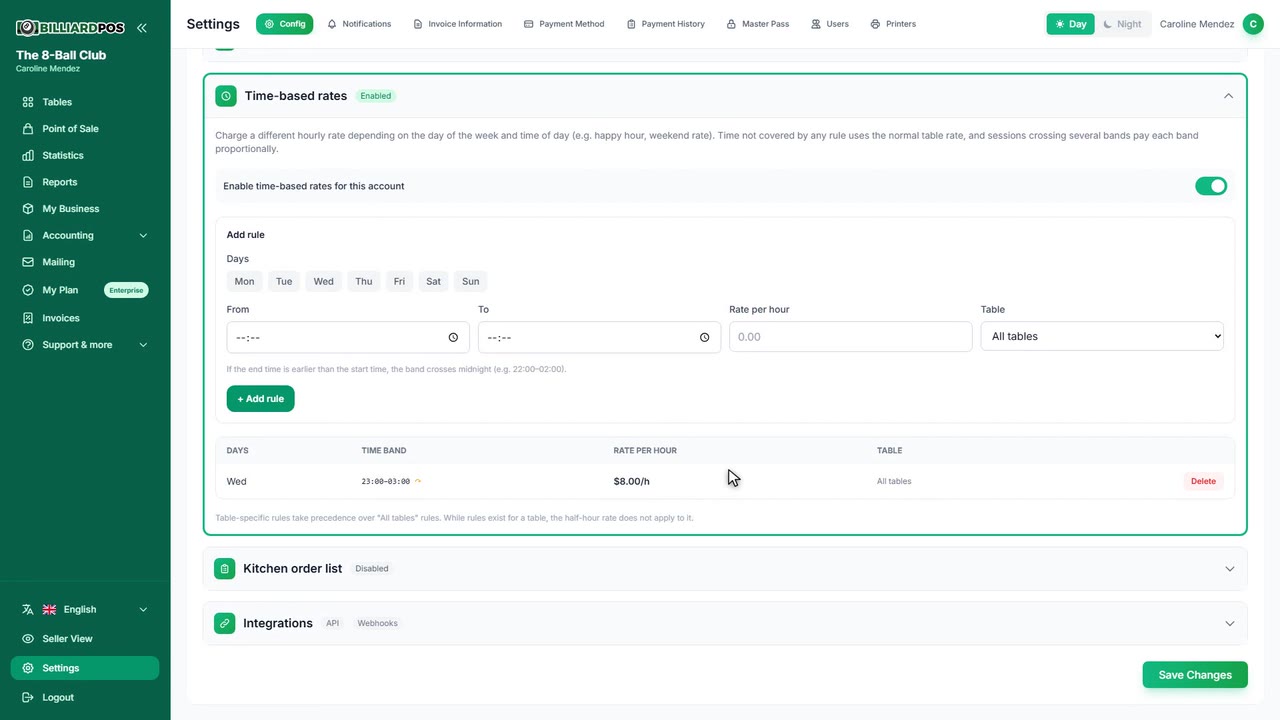
Kitchen order list
Adds a tab to the point of sale listing every order sent to the kitchen, each with its items, its notes and a Delivered button, plus the shift's history. Pending orders change colour with how long they have been waiting — green, amber, red — and you set the minutes for each threshold. Only products flagged for the kitchen are recorded, and it works with no printer at all: the screen and kitchen ticket printing are independent of each other.
#kitchen-order-list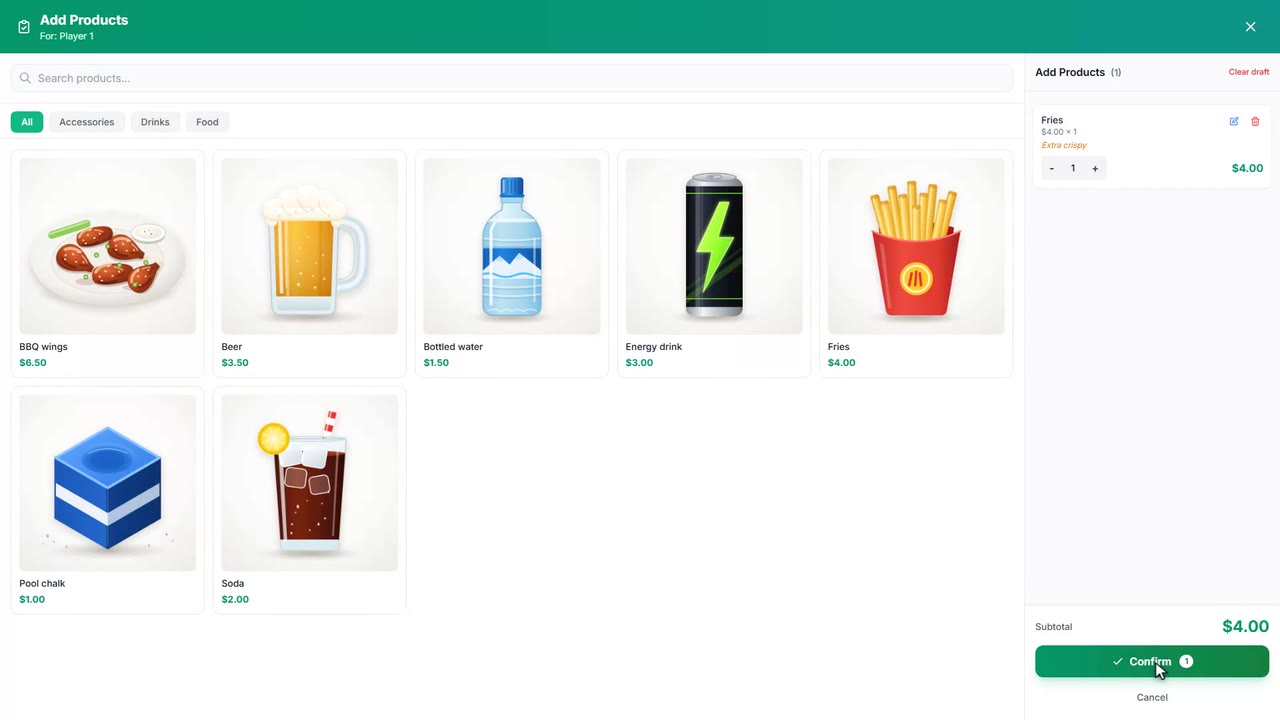
Mixed payment and custom payment methods
Create your own payment methods — cash, debit, transfer, whichever app you take — and order them the way you use them at the counter. With mixed payment on, a single charge can be split across several: 20,000 in cash and the rest on card, for example. The parts have to add up to exactly the amount charged and each must use a method that exists, because that is what the cash count and the report breakdowns are built from.
#mixed-payment-and-custom-payment-methods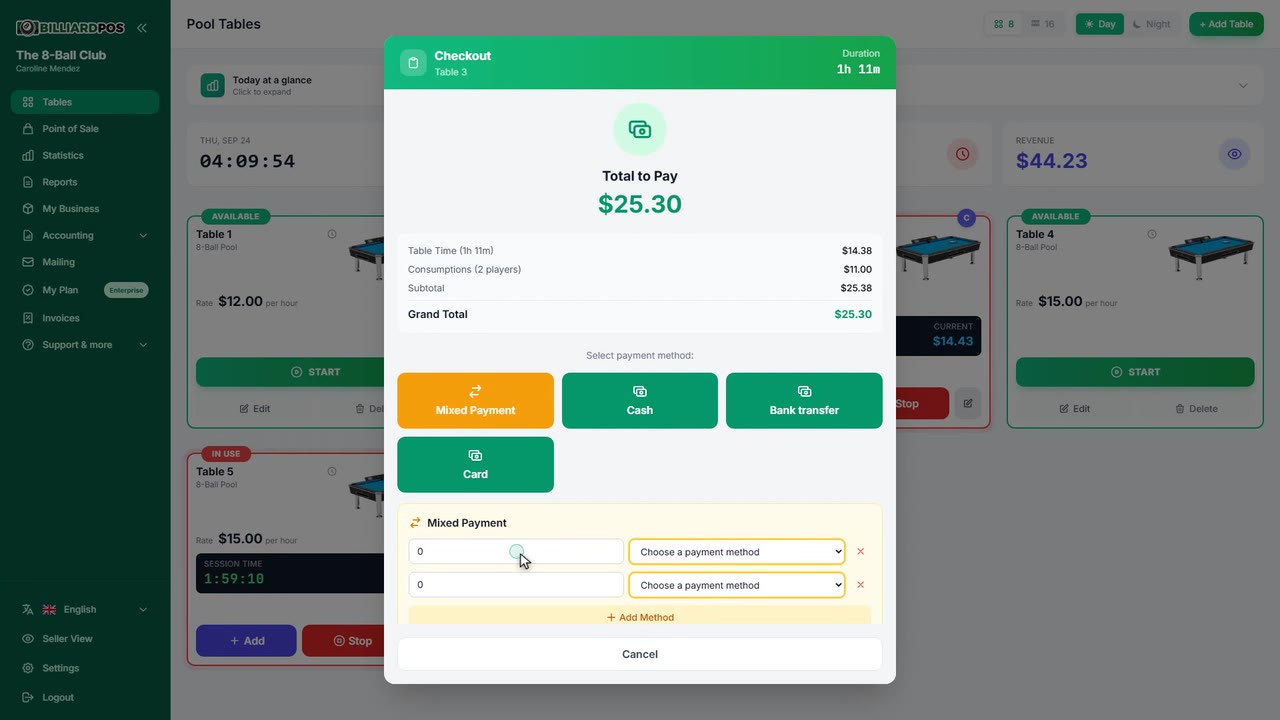
Checkout payment types
You decide which ways of splitting a bill your staff see when they close a table. There are four: single payment, where one person pays everything and which is always available; split equally between all players; loser pays, to hand-pick who pays; and move account, which shifts the debt onto a POS tab. Anything you leave unticked never appears in the checkout window, so the screen only offers what you actually use.
#checkout-payment-types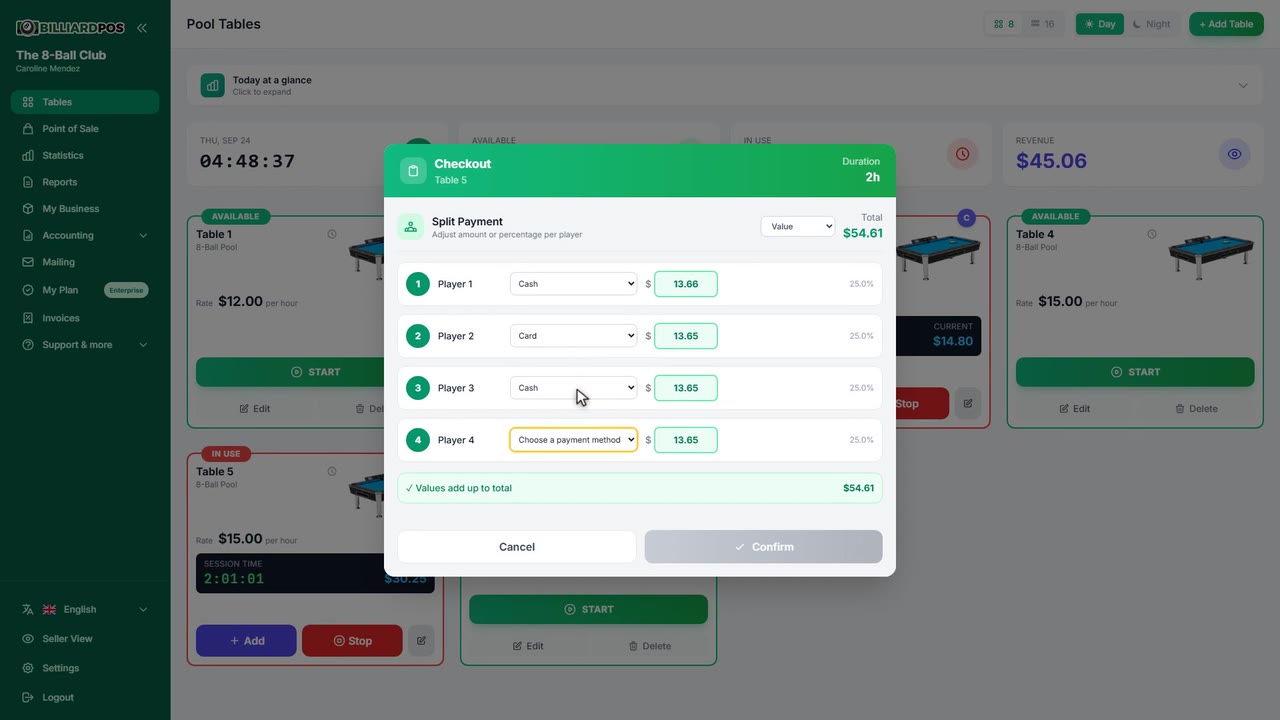
External API and webhooks
Opens BilliardPOS up to other software. The API lets an outside system read your tables and their state and drive a whole session — start, pause, resume, close — authenticating with keys you generate yourself and can revoke at any time. Webhooks work the other way: they notify your server whenever a session starts, pauses, resumes, closes or is cancelled, sign every delivery so you can check it really came from us, and retry when your system does not answer. Both are off until you switch them on, and the documentation lives inside the panel.
#external-api-and-webhooks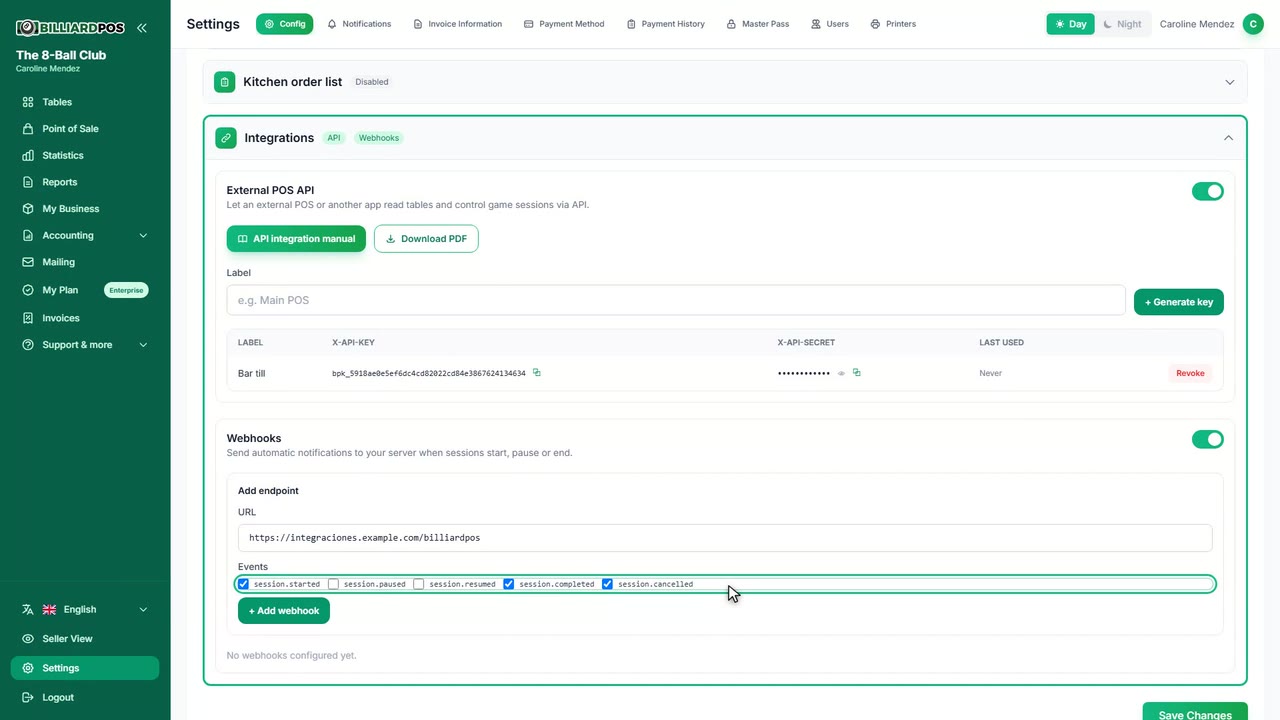
Customer mailing
Keep your list of members and customers with their name, email, phone and notes, and mail them from your own SMTP server, with your sender address and your colours. You compose the message on a template you can edit, preview it before sending, and every email greets its recipient by name. A campaign history records how many went out and how many failed, and the member list exports to CSV.
#customer-mailing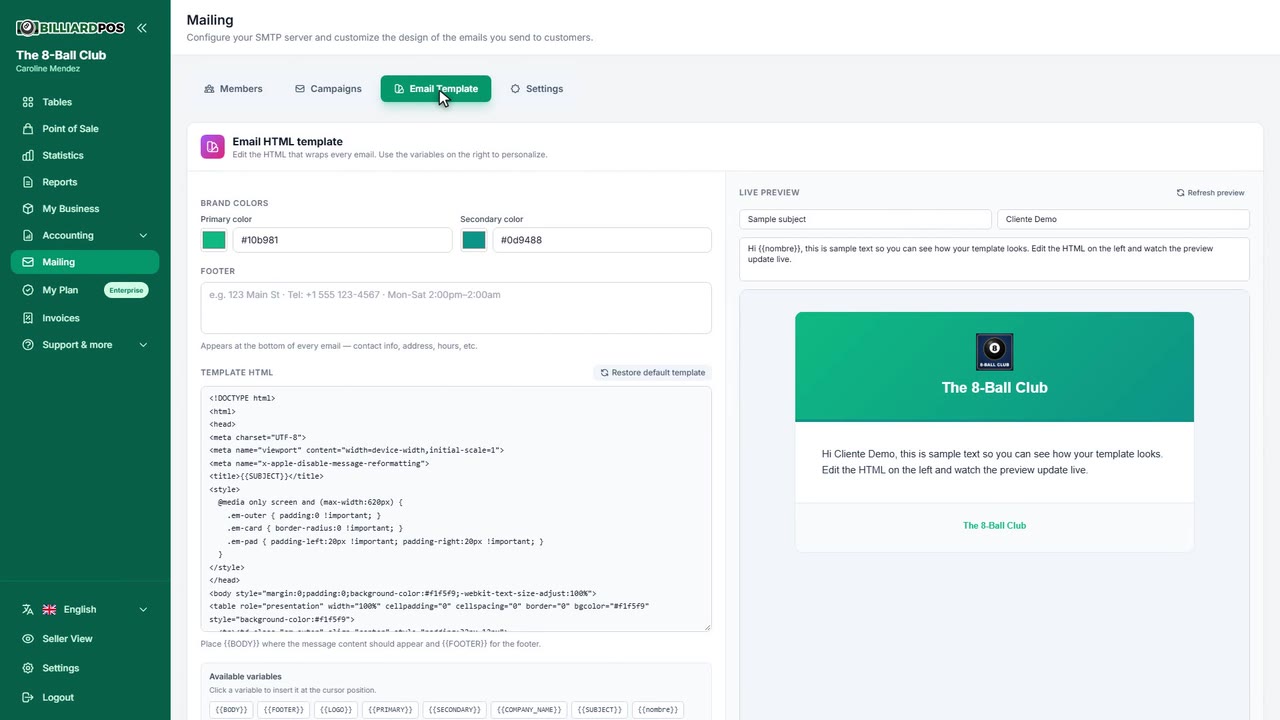
The only paid module — $99 of hardware as a one-off payment, plus $9 a month for the service
Not included in the plans: it is paid separately. Tap to read how it works.
Automatic table lights with relays
$99 hardware + $9/month
Each table's light comes on by itself when the timer starts and goes off when the session closes, so nobody plays in the dark and you never light an empty table. It is the only paid module in BilliardPOS: the relay board is $99 as a one-off payment and the service $9 a month; everything else is included in your plan. It needs an IP relay board (ESP32) — bought from inside the panel, flashed and ready — and on each table you only type the serial from the sticker and the channel, 1 to 16; one board covers 16 tables and you can install several. The board polls the server every ten seconds from inside your own network, with no ports to open, and you choose what happens if it loses connection: cut everything, or hold the last state for a few minutes.
#automatic-table-lights-with-relays